Hausleads · Product design
Redesigning a real-estate platform, from a buyer's first search to an agent's follow-up.
In short · 30-second read
Stonehaus Realty's agents were working leads in a platform they found hard to use. In 2022–23 I redesigned the buyer website and the agent CRM, so what a buyer does on the site shows up for the agent as something useful.
- The problem. Buyers search over weeks; agents got a name and a phone number.
- Buyer side. Search, a property page, and a Notebook that remembers.
- The link. Five things a buyer does that reach the agent.
- Agent side. A lead list you can scan and a profile that tells the story.
- Automation. Reorganised so agents can see what's going out.
- Outcome. Launched in 2023; agents preferred it to the old platform.
01 / The problem
Buyers take weeks to decide. Agents were getting a name and a number.
Nobody picks a house in one visit. People come back, change their budget, compare, and bring a partner in. Every visit says something about what they want, but on Stonehaus's old platform very little of it reached the agent. A new lead arrived as a name and a phone number, and the agent had to call to find out the rest.
Stonehaus wanted a public site that made searching easier and an agent app that turned all that browsing into follow-up. I treated it as one product with two sides.
02 / My role
The only designer, from the first map to launch.
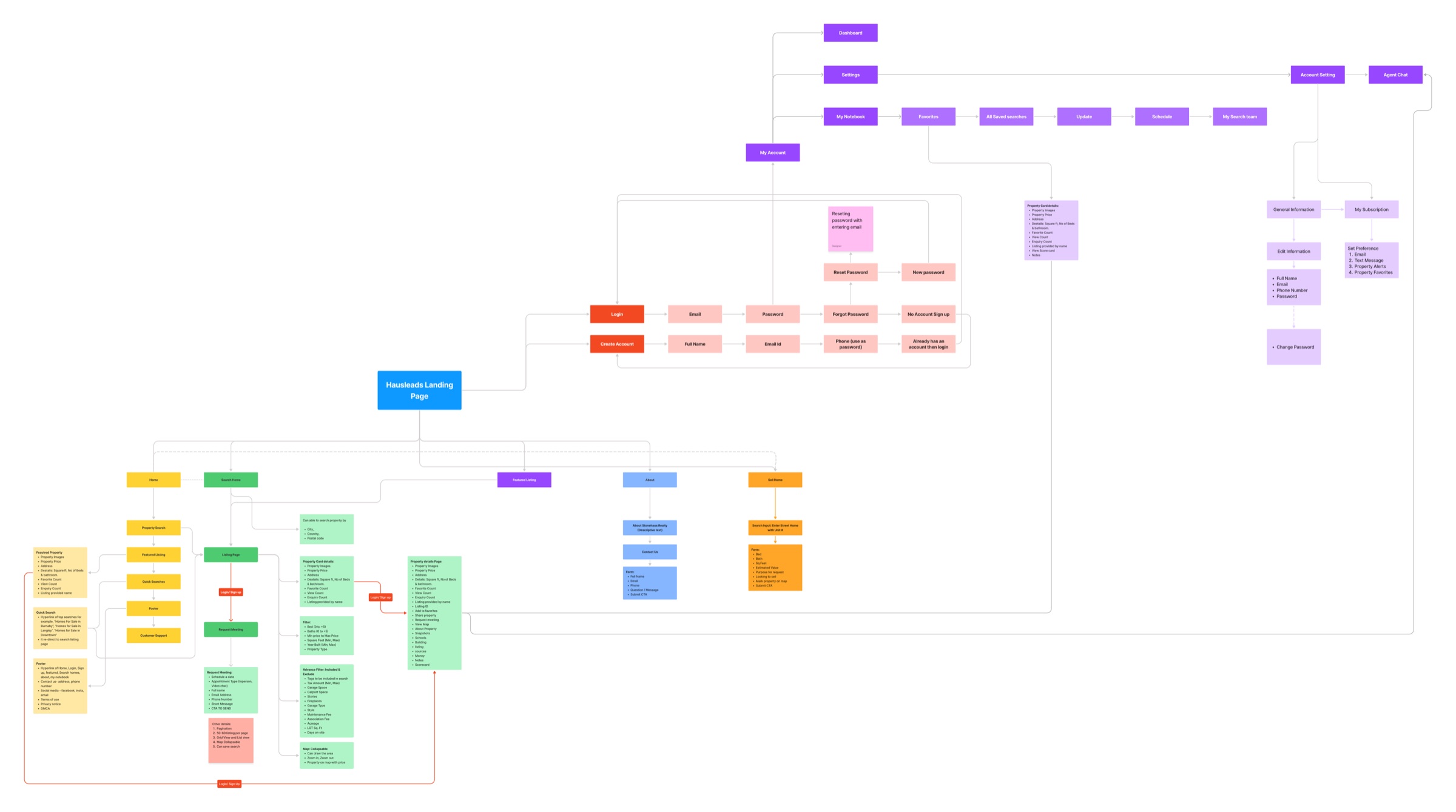
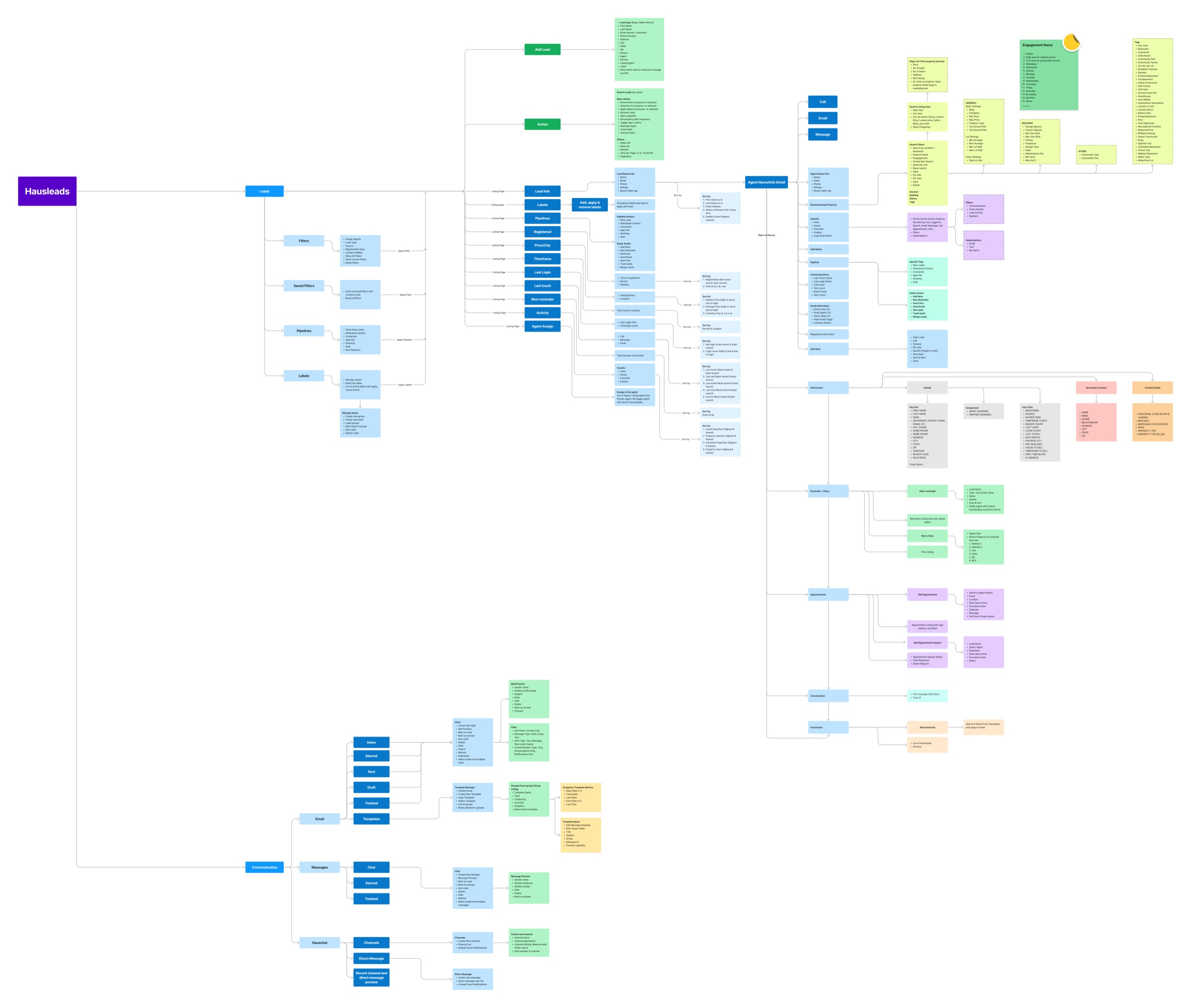
This was freelance work, from 2022 into 2023. The team was seven people: a PM, developers, QA and me. I did the research for the marketing site, talked with four to six of Stonehaus's in-house agents about how they actually work their leads, and drew the whole product as information architecture before designing any screens. Those two maps, below, were what the team argued over and agreed on.
Some things came fixed. Regulation and the listing platforms decide what a site asks at sign-up, and the old site already asked it; there, my job was to make it less painful. The rest was mine: how agents see their numbers, the new email, calendar and team chat modules, and the two parts that took the most time, the lead dashboard and automation. I designed every component from scratch. There was no UI kit.
Part one
The buyer, on the marketing site
03 / Search
Search first.
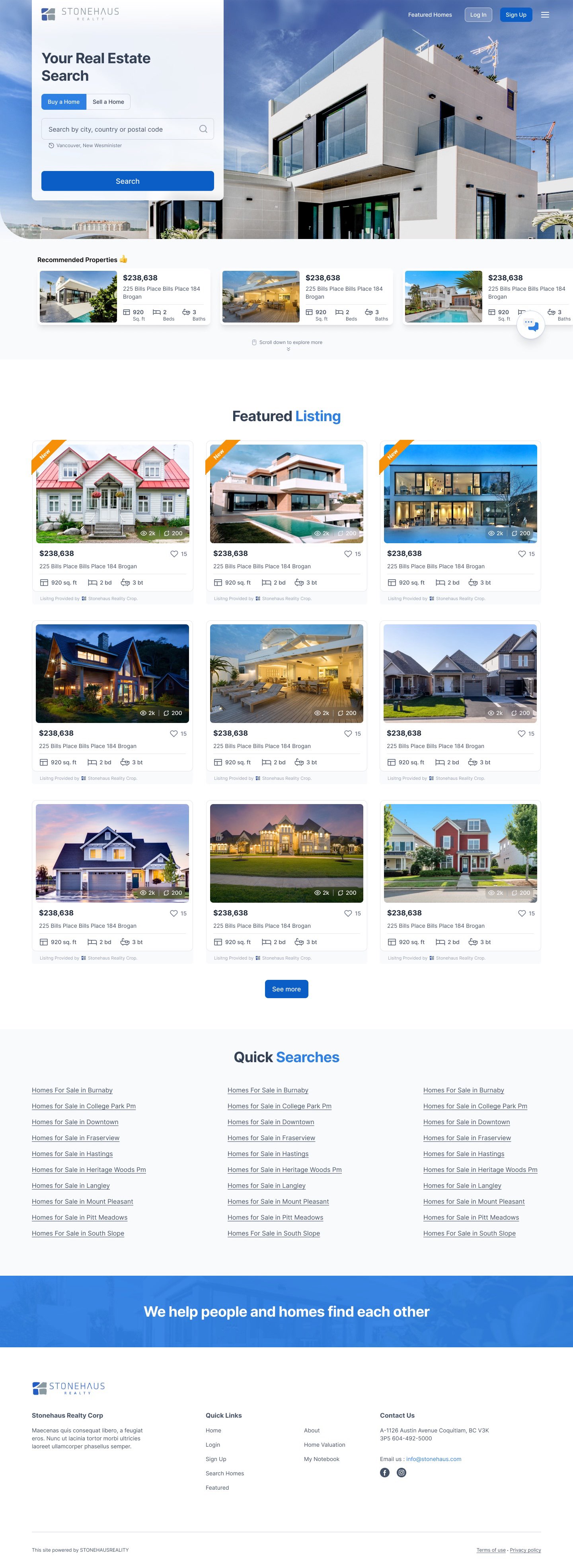
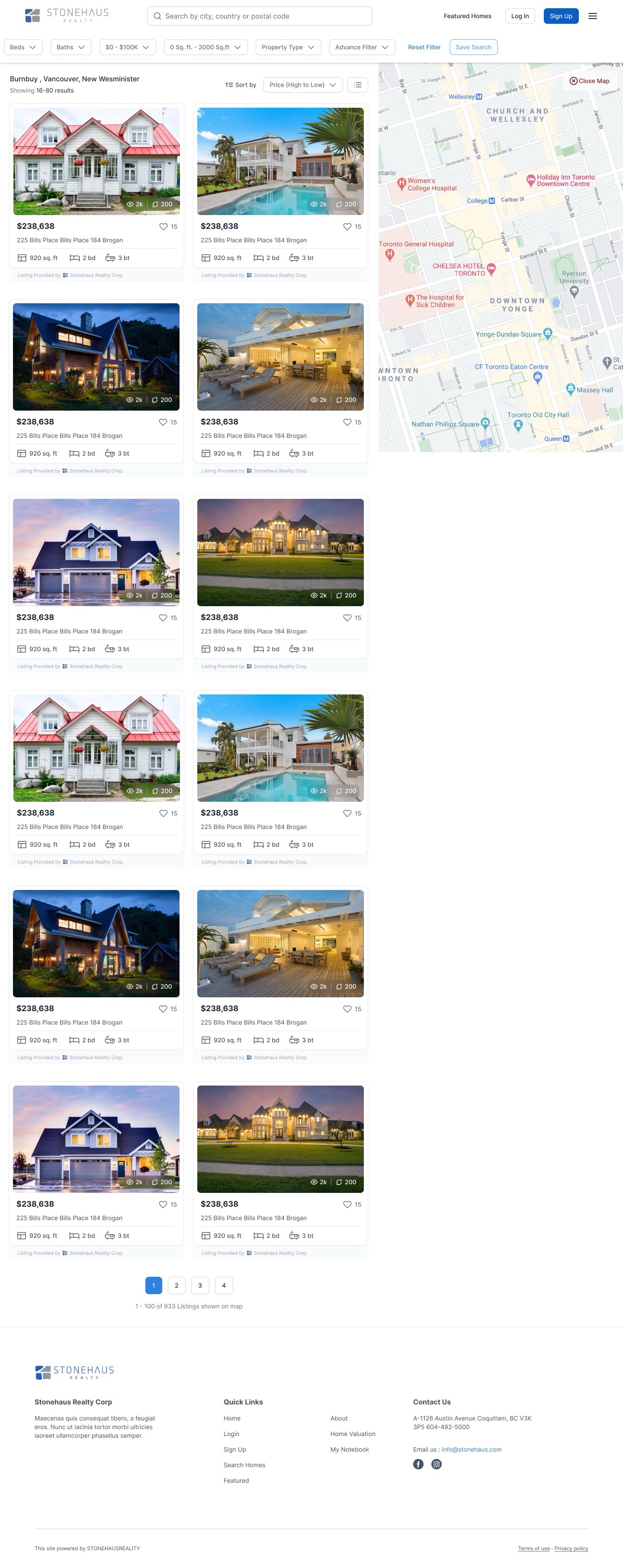
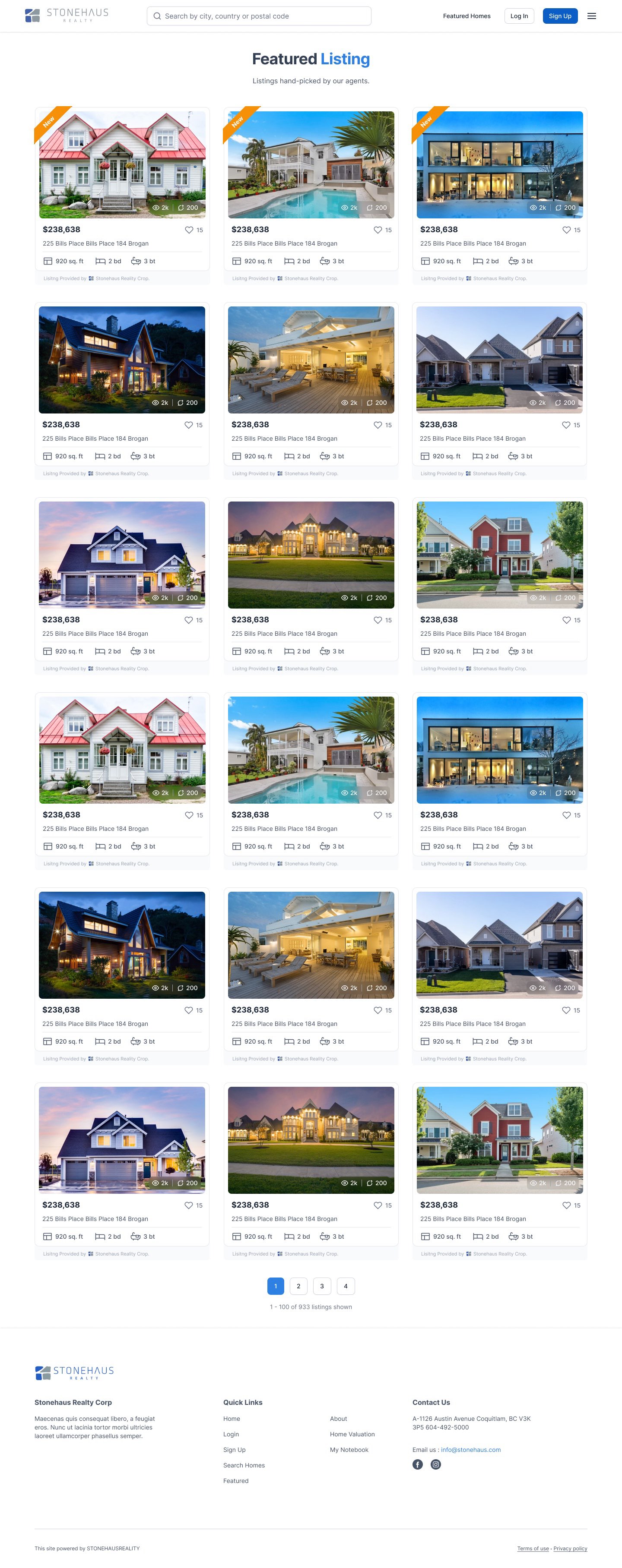
The homepage opens with a search box over a photo, with Buy and Sell tabs and the areas you searched last time. Below it are recommended and featured homes, and quick links by neighbourhood for people who don't know what to type yet.
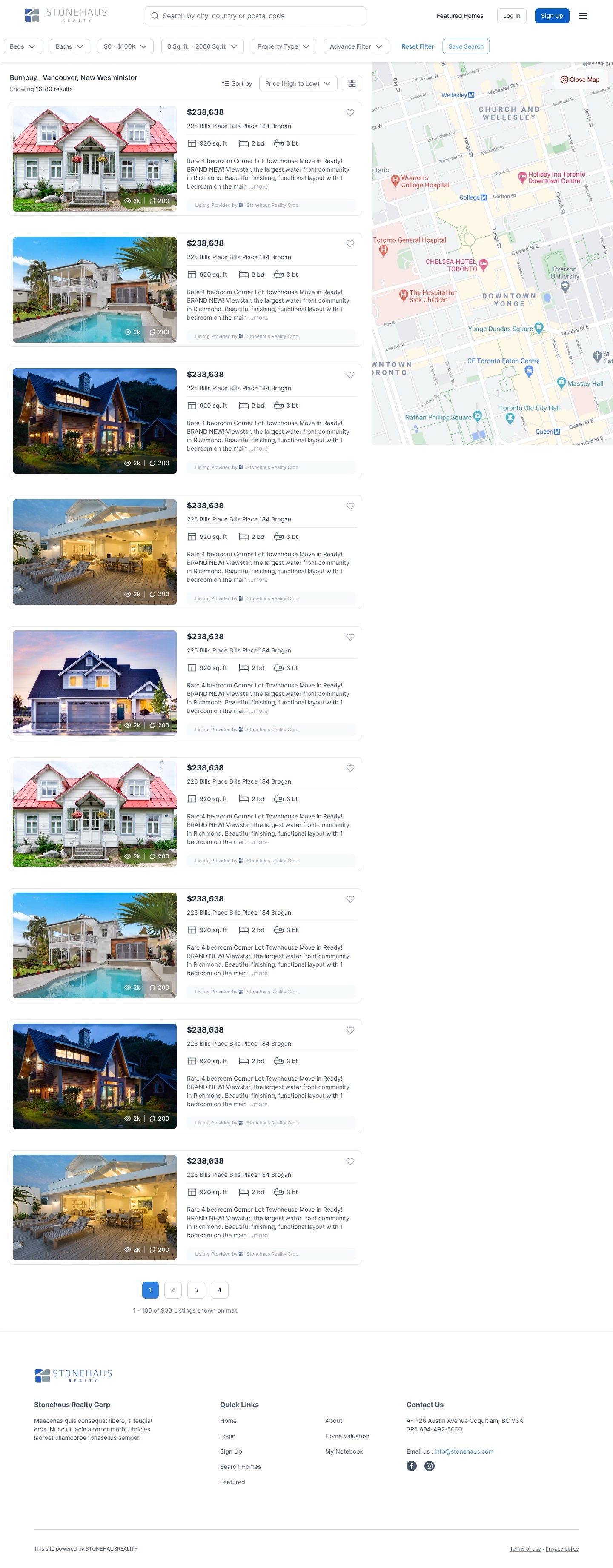
Results have filters for beds, baths, price, size and type along the top, with Save Search next to them. You can switch between a grid, which favours photos, and a list, which adds a description, and keep a map open alongside.
04 / Property page
One page per home, with the request button close by.
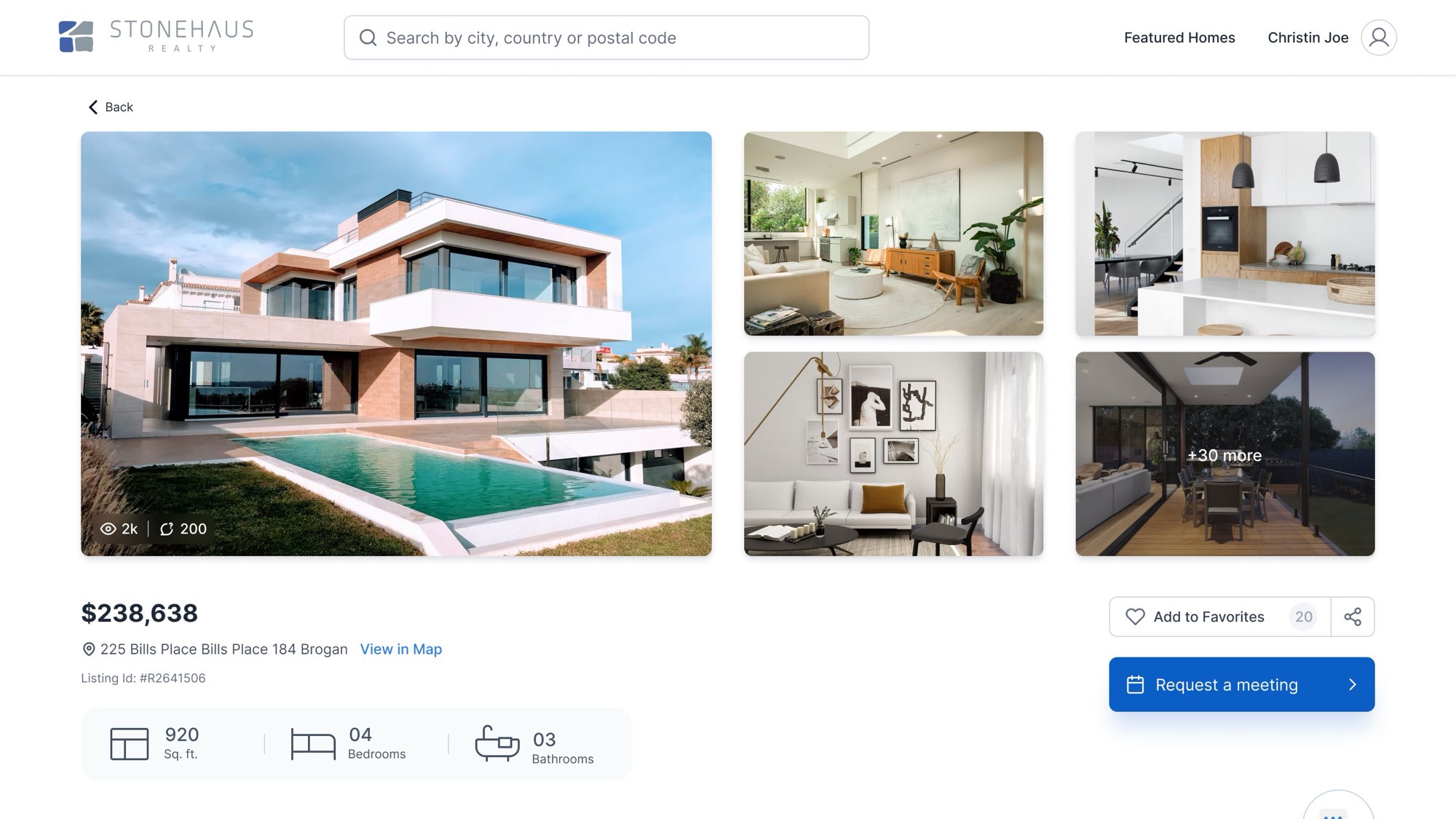
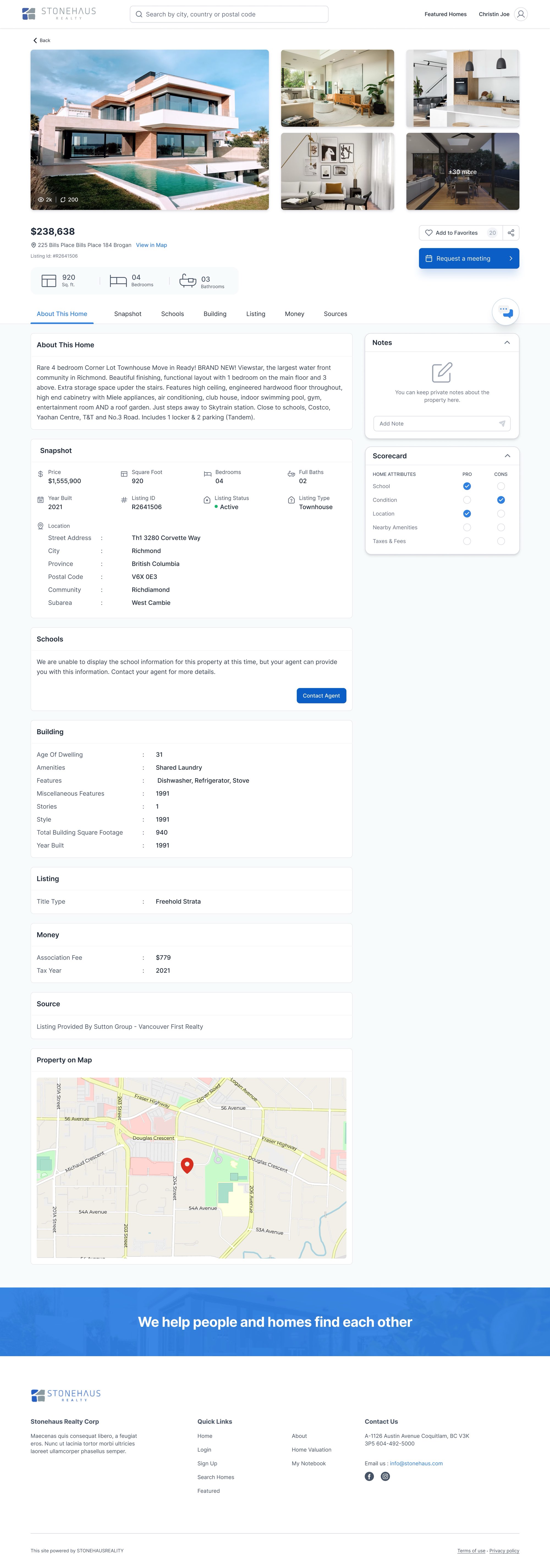
A listing shows the gallery, price, address and the three numbers everyone checks first: size, bedrooms and bathrooms. Add to Favorites and Request a meeting sit right beside them. Further down, every section uses the same label-and-value rows, so comparing two homes is easy.
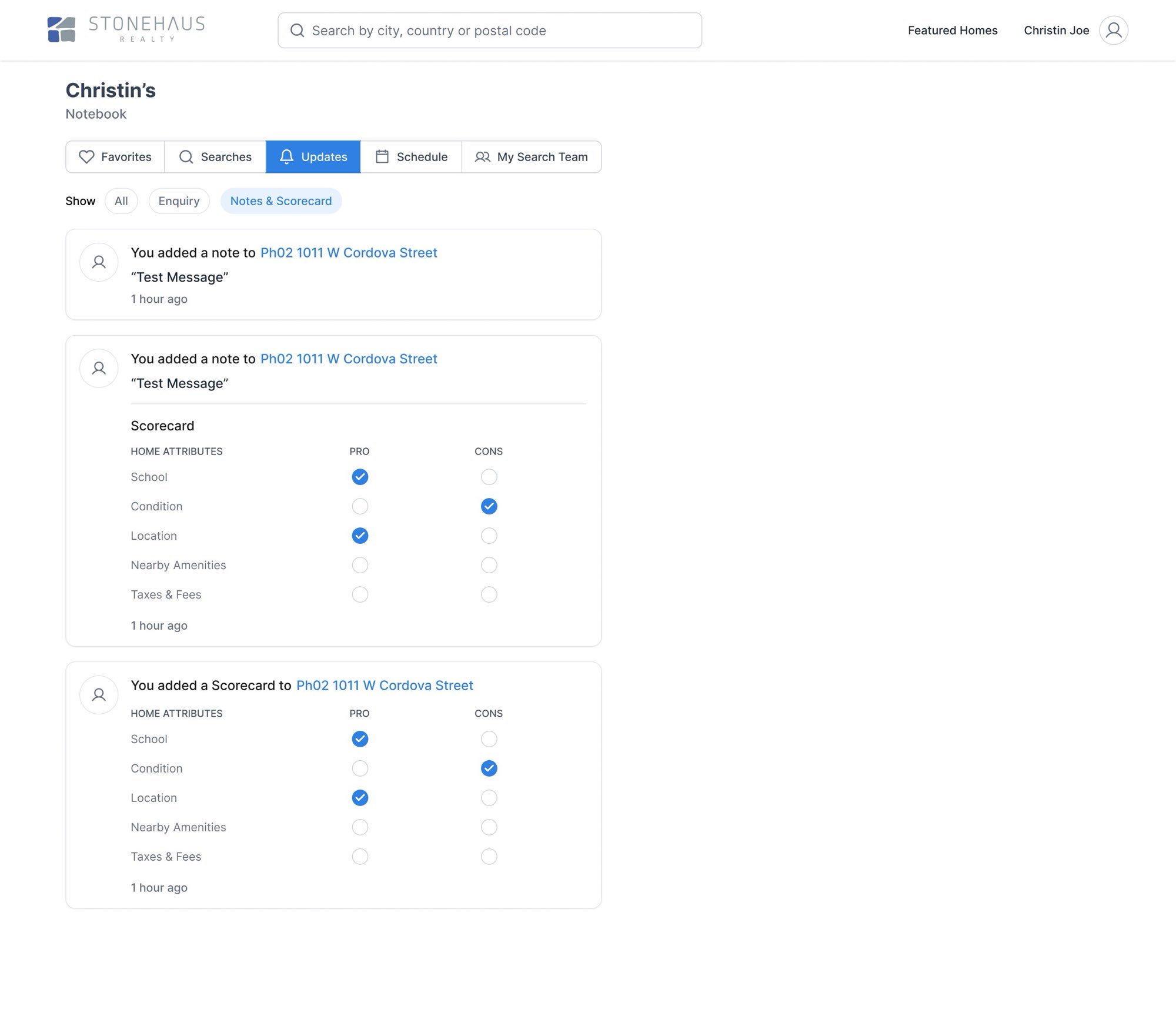
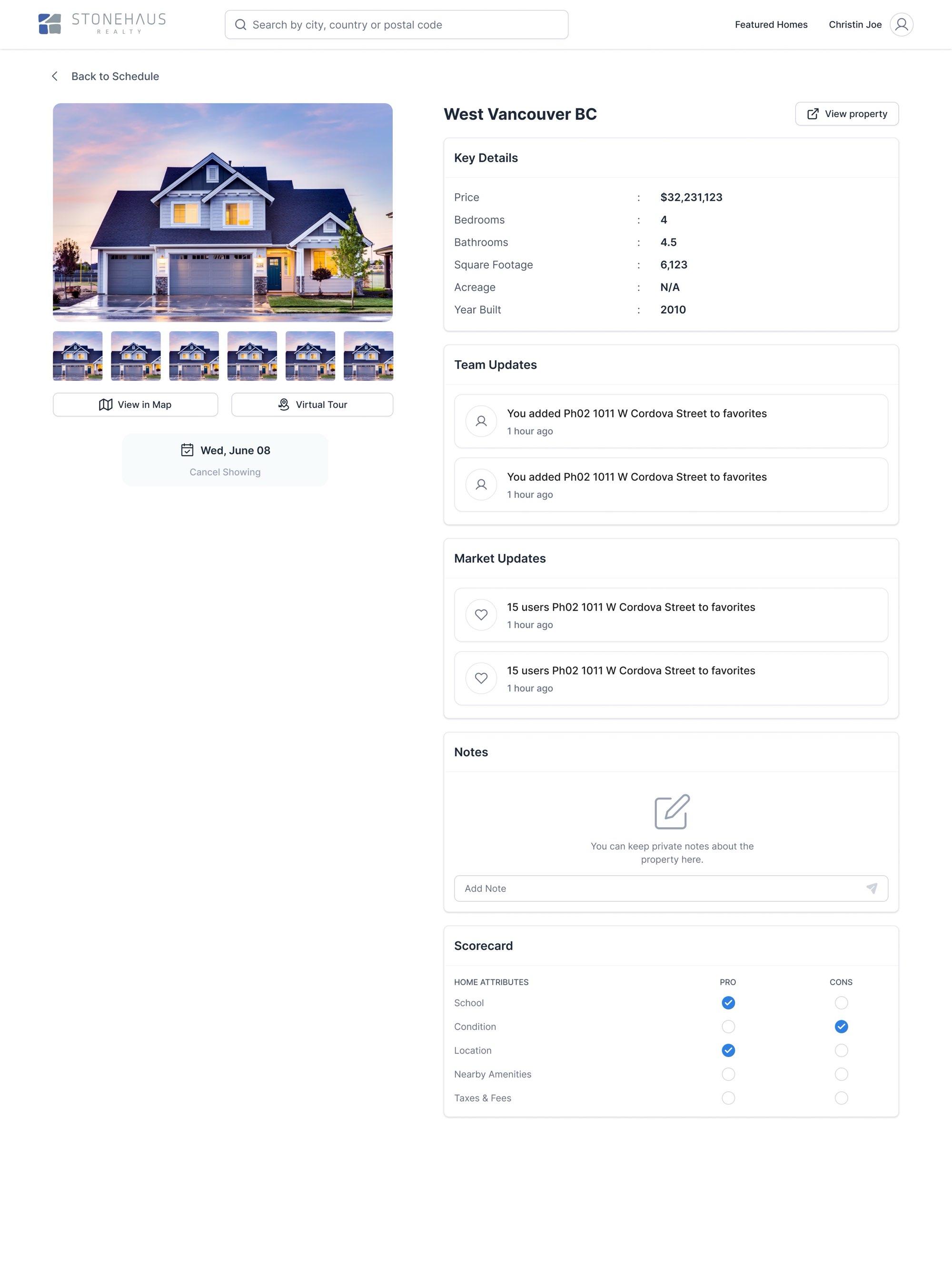
Buyers can write private notes and fill in a pro/con scorecard in the side column while they read. Where school data is missing, the page says so and offers to put them in touch with an agent, instead of showing an empty box.
05 / Sign up
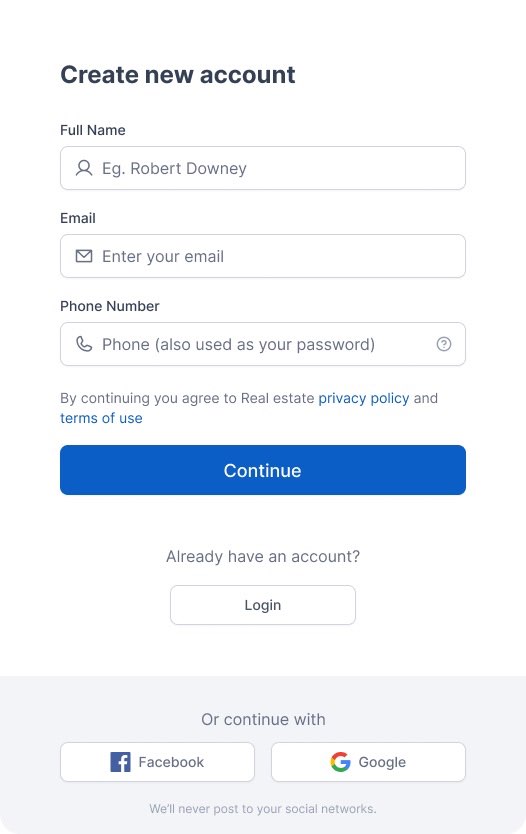
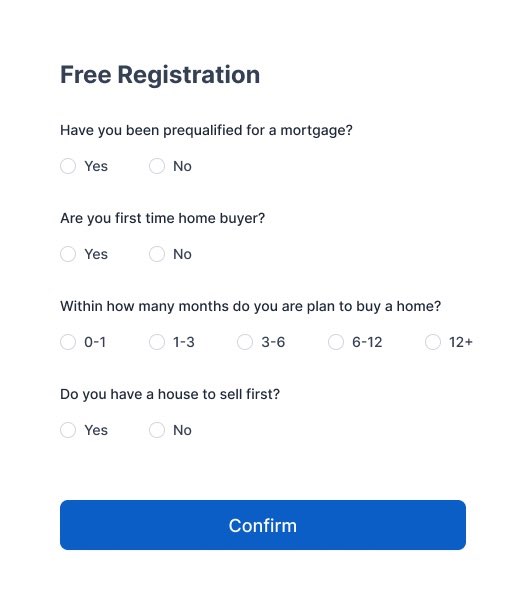
Questions we had to ask, asked once.
- Why
- The fields and the four questions (mortgage pre-approval, first-time buyer, timeline, a house to sell) are required, and the old site asked them all on one long form. I split it in two: three fields to create the account, then the questions.
- Trade-off
- It's an extra screen. I was fine with that, because people finish short screens, and the answers still land on the lead's profile before the agent calls.
Saving a home needs an account. You can sign up with a name, email and phone number, or with Facebook or Google. The phone number doubles as the password; that rule came with the platform.
06 / My Notebook
A place to come back to.
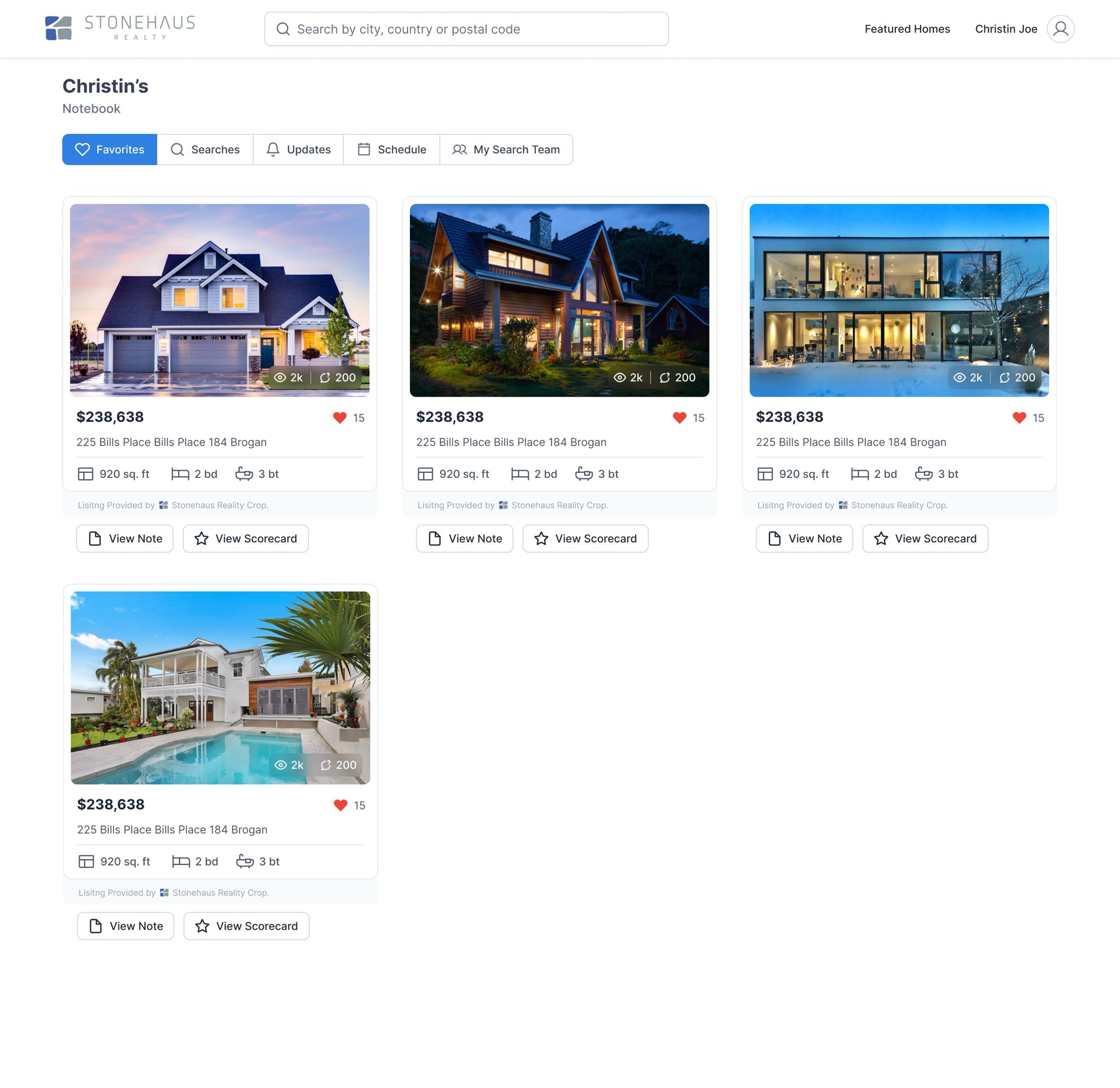
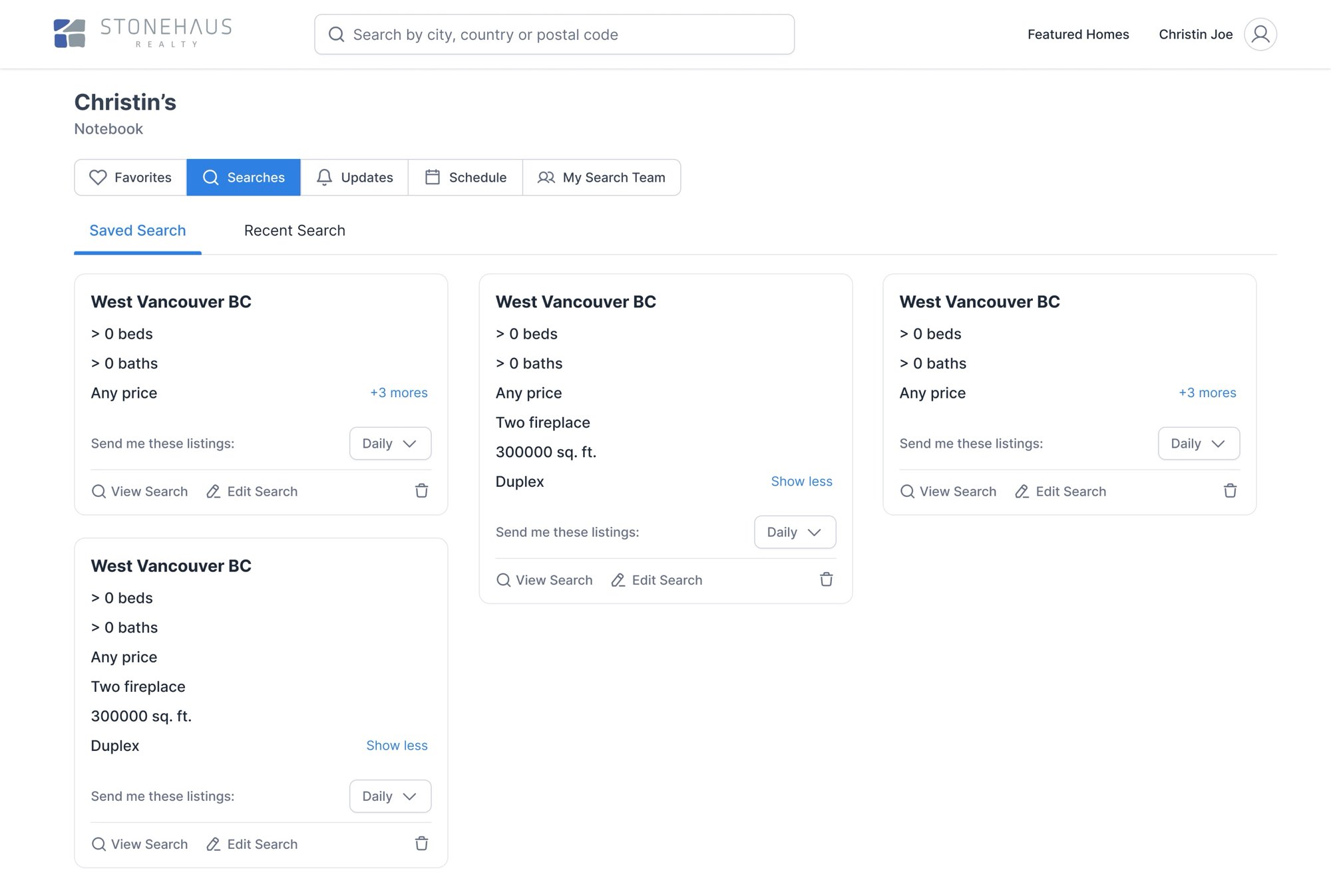
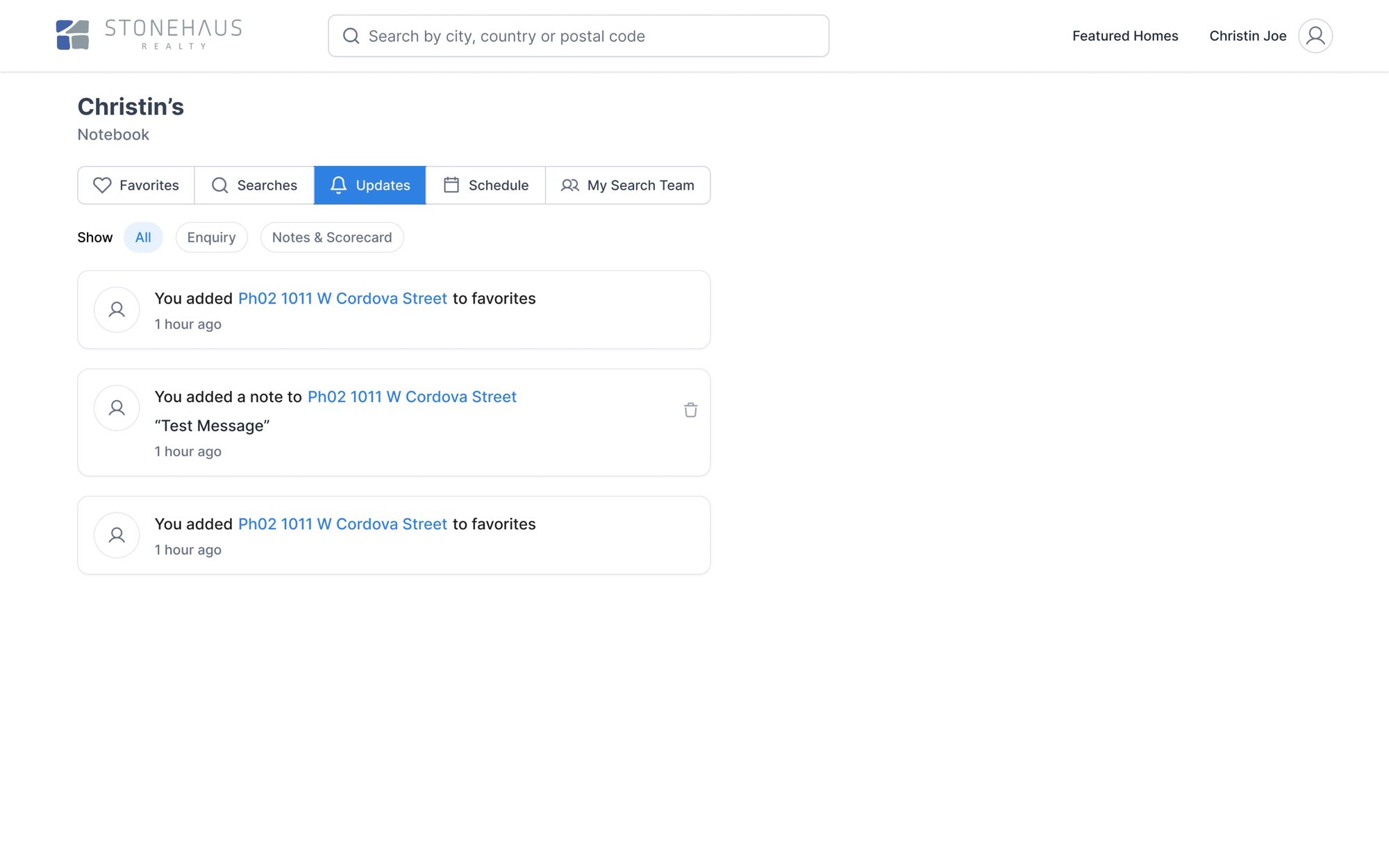
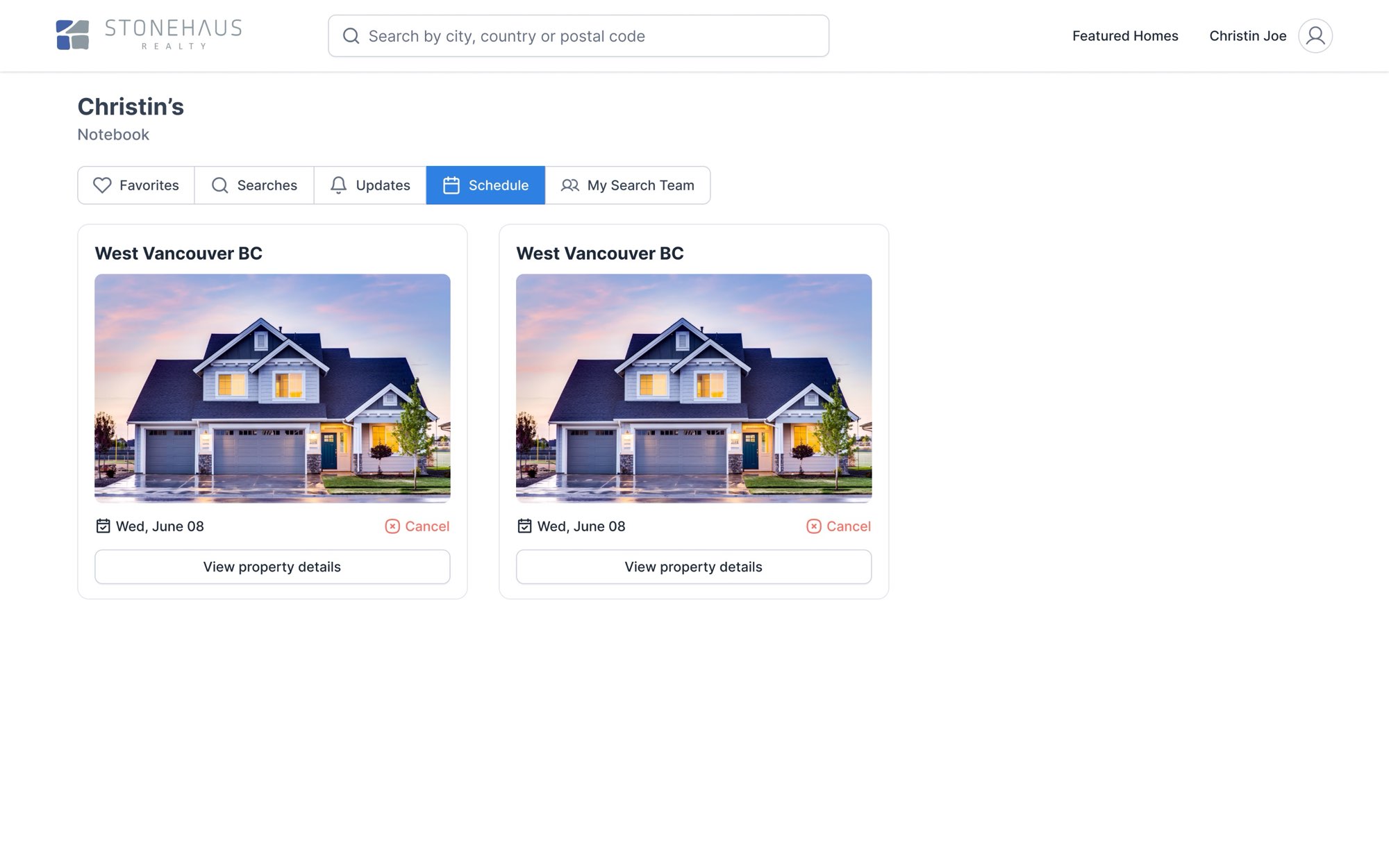
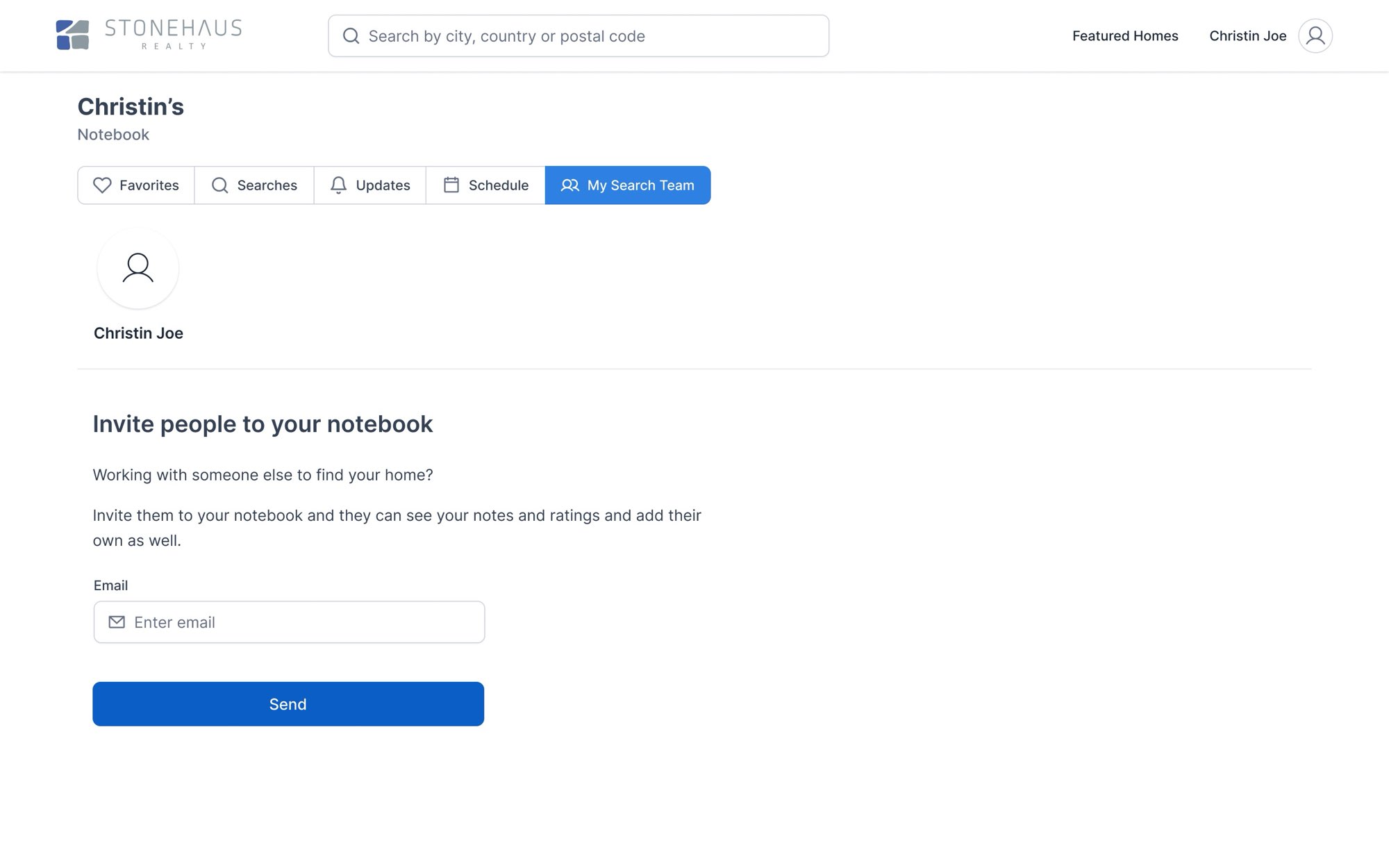
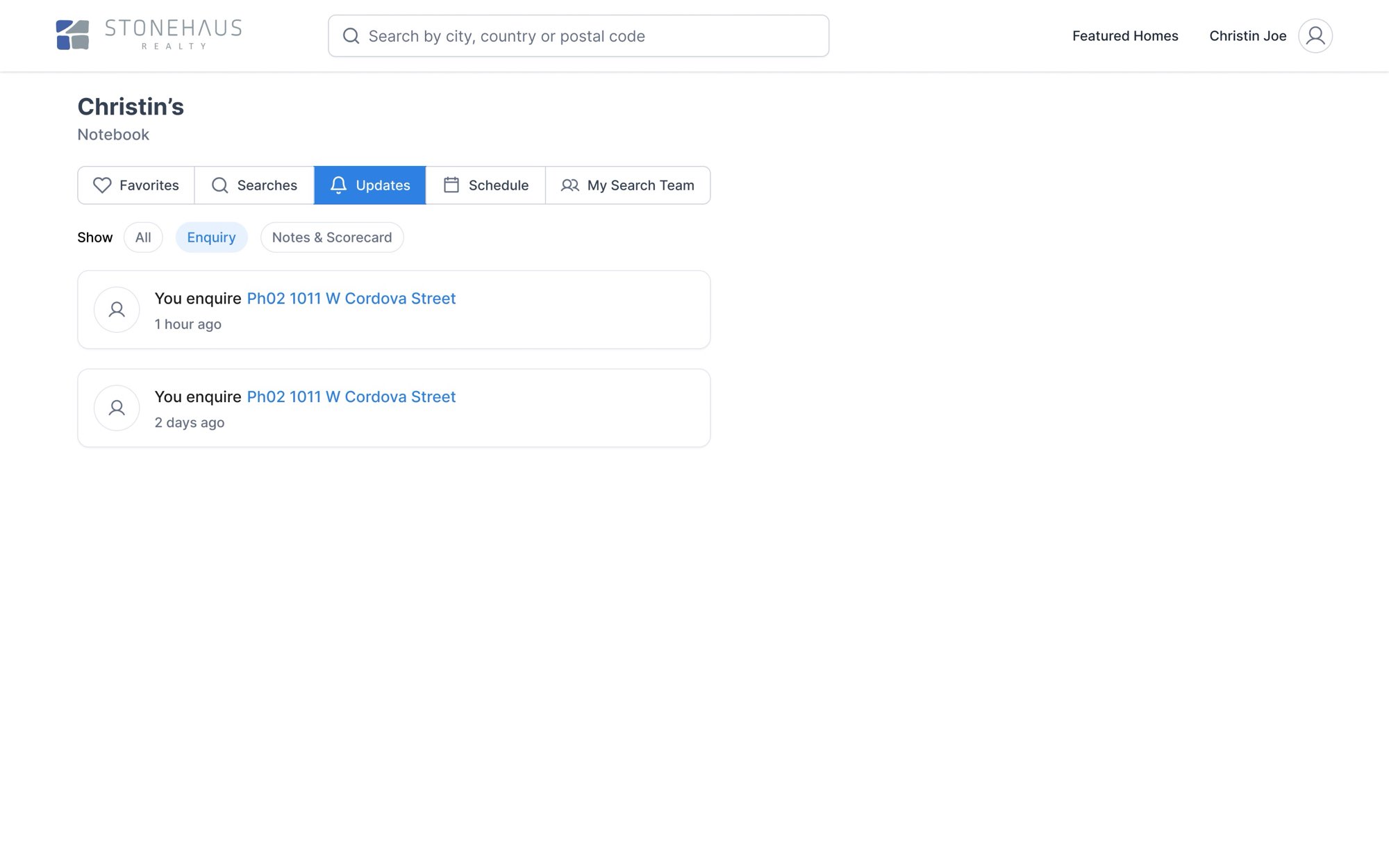
Once you sign in, My Notebook holds everything: favourites, saved and recent searches, an activity feed, scheduled showings, and your search team, the people you invite to see your notes and add their own. Each showing has its own page with the facts, photos, map, notes and scorecard.
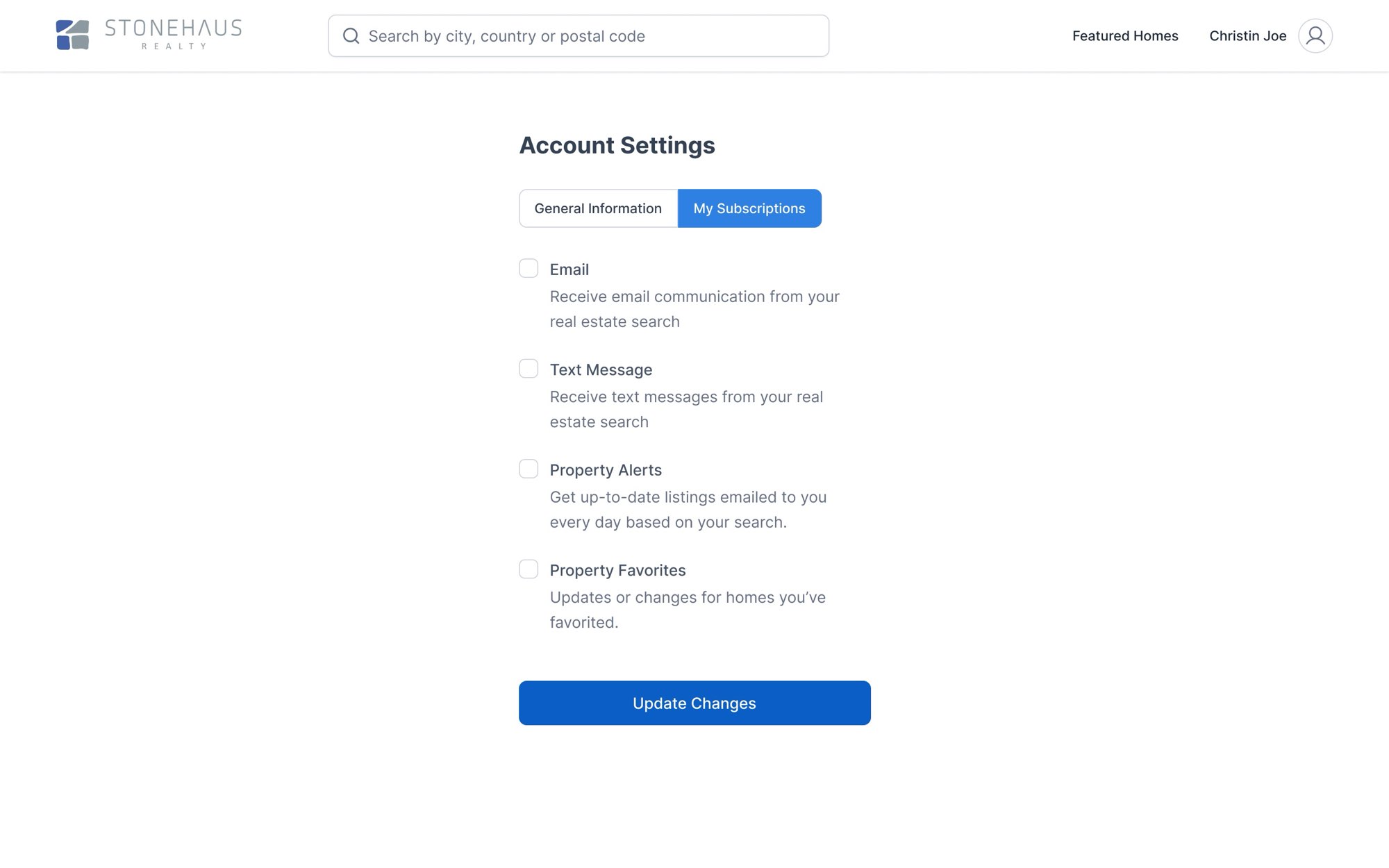
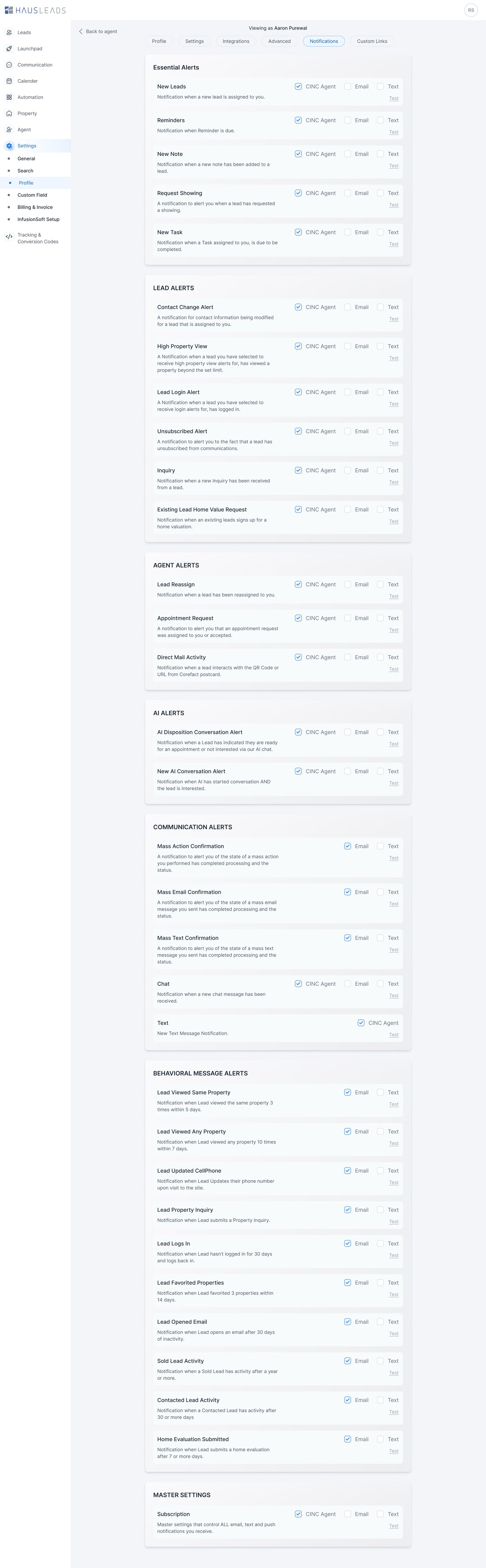
Account settings are where buyers choose how they hear from Stonehaus: email, text, property alerts. That matters later, because automated messages only go out on the channels a buyer has allowed.
Part two
The link between them
How the two sides connect
What the buyer does, and what the agent sees.
The whole project hangs on this. Five examples:
Answers the four questions at sign-up
An automatic note on the lead's profile, ready before the first call The lead profile
Views homes, favourites them, saves a search
Activity counts and last login in the lead's row The lead list
Requests a showing or asks a question
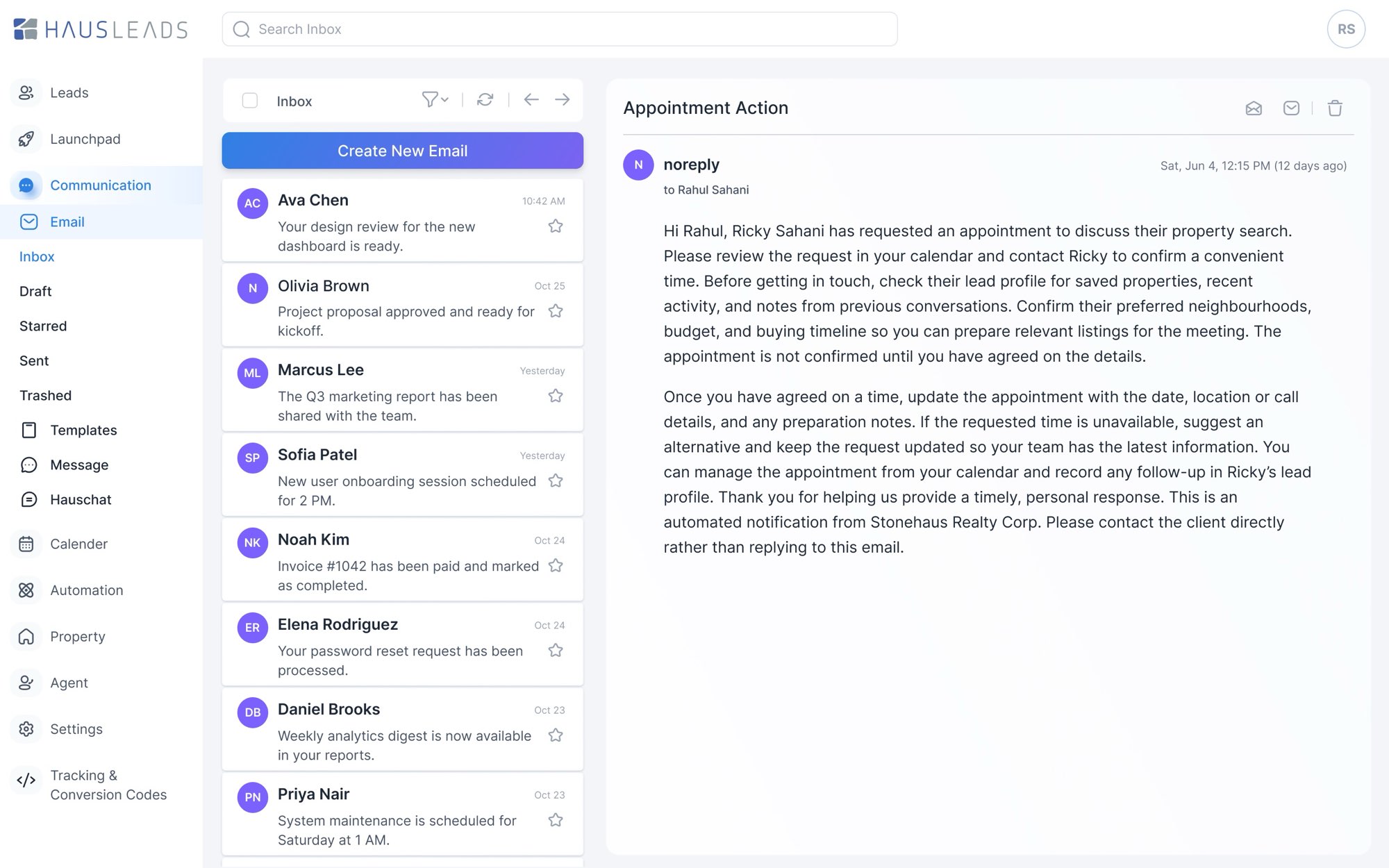
An alert, an Appointment Action email and a calendar item to confirm The request
Views the same home three times in five days
A behavioural text, or an email, sent automatically Automation
Chooses email, text and alerts in subscriptions
The channels follow-ups are allowed to use My Notebook
07 / The request
Asking about a home.
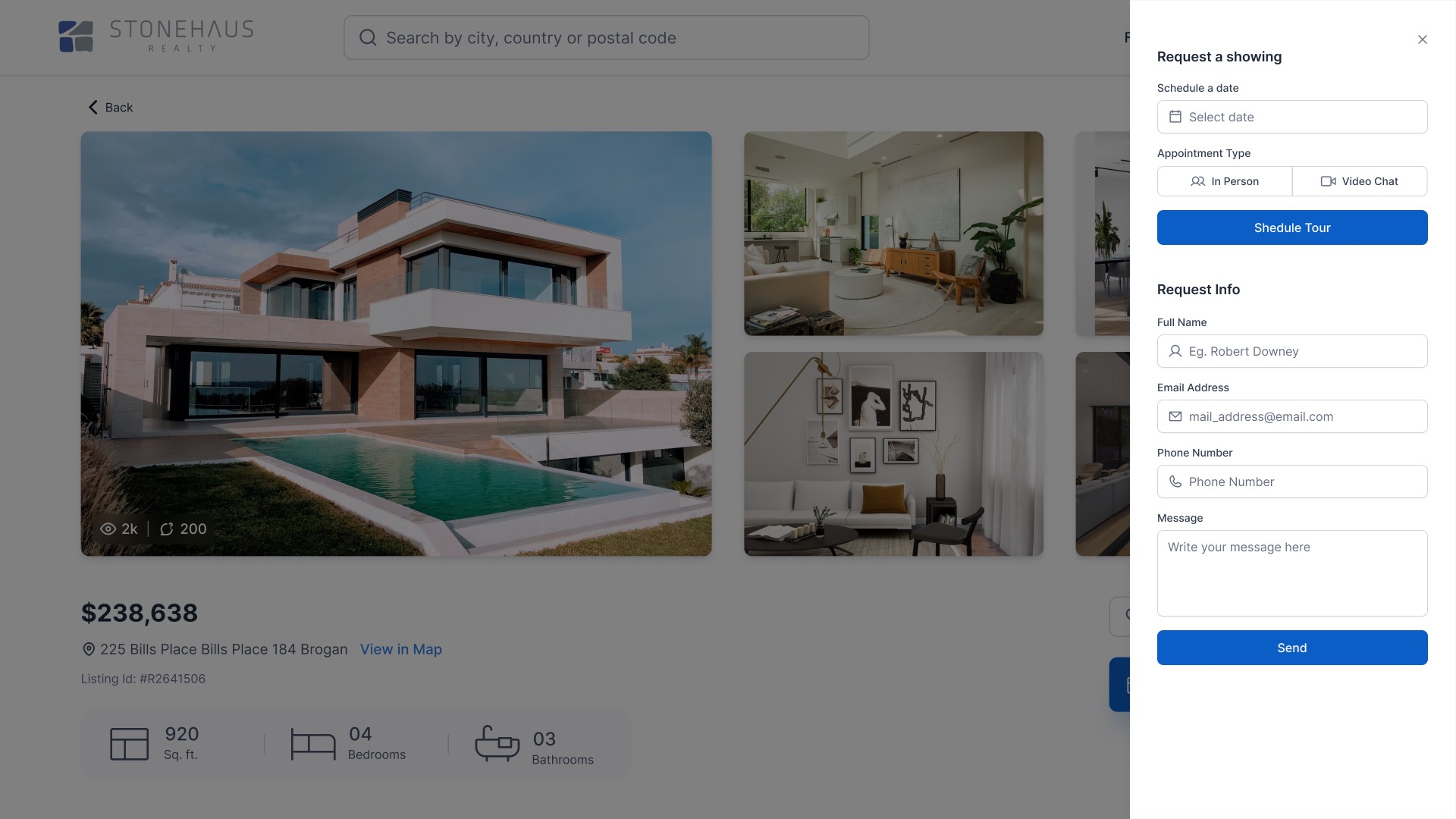
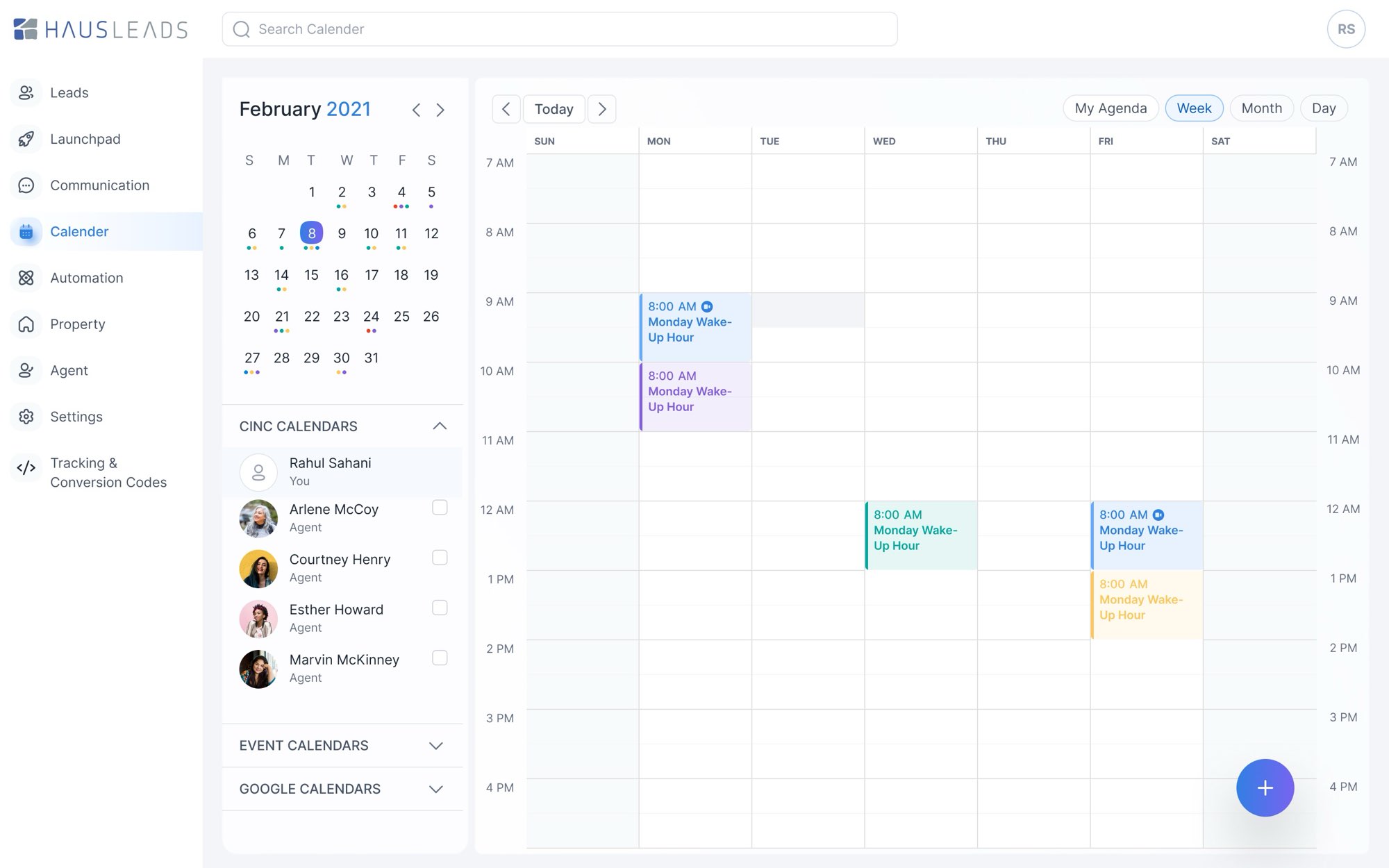
On a property page, Request a showing opens a side panel. You can book a tour (pick a date, in person or video) or just send a question. The request shows up in the buyer's Notebook, and on the agent's side as an alert, an email and an event on their calendar. The email says who asked and suggests what to check before calling: saved homes, recent activity, notes.
Part three
The agent, in the app
08 / Lead routing
Who gets the lead.
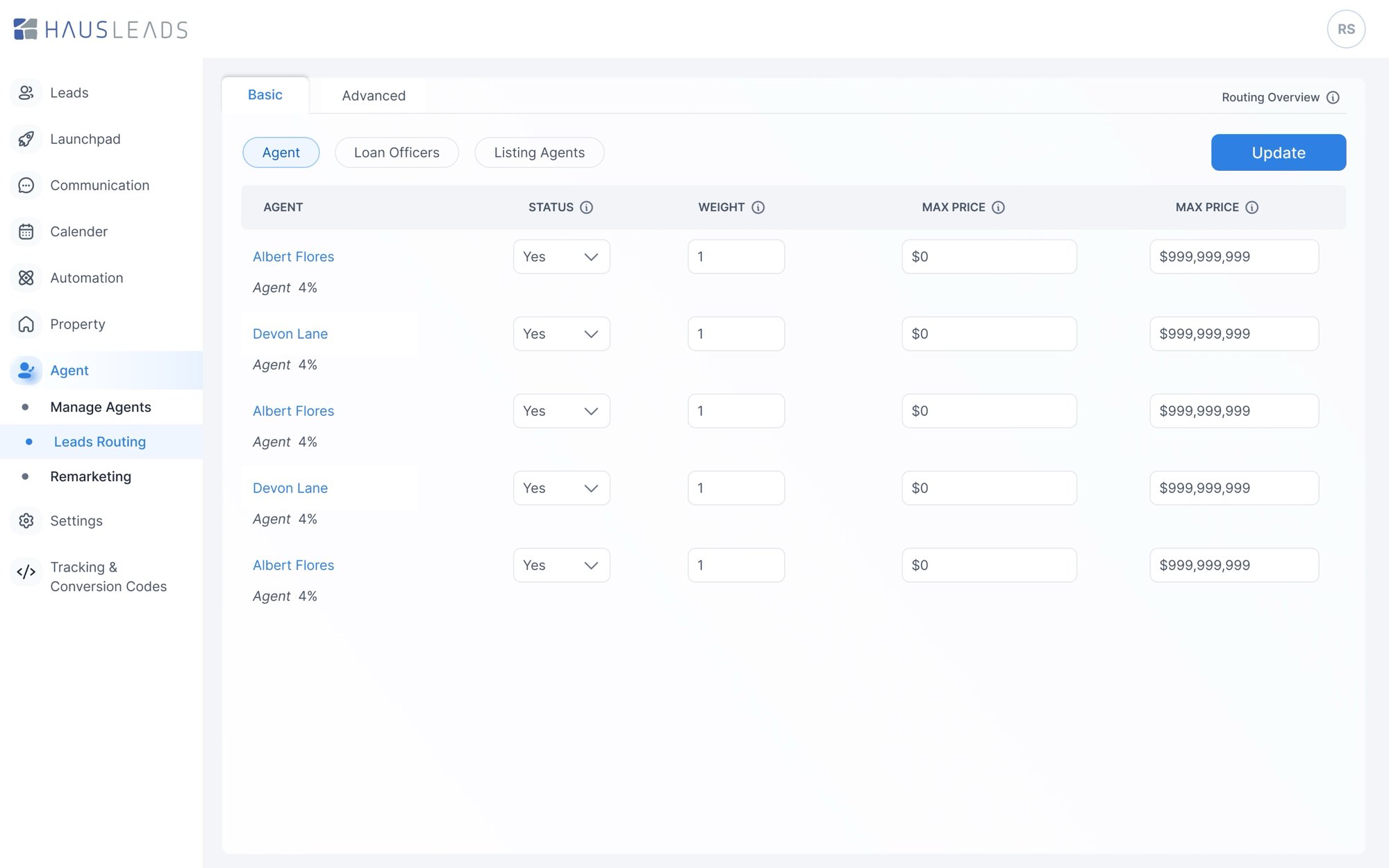
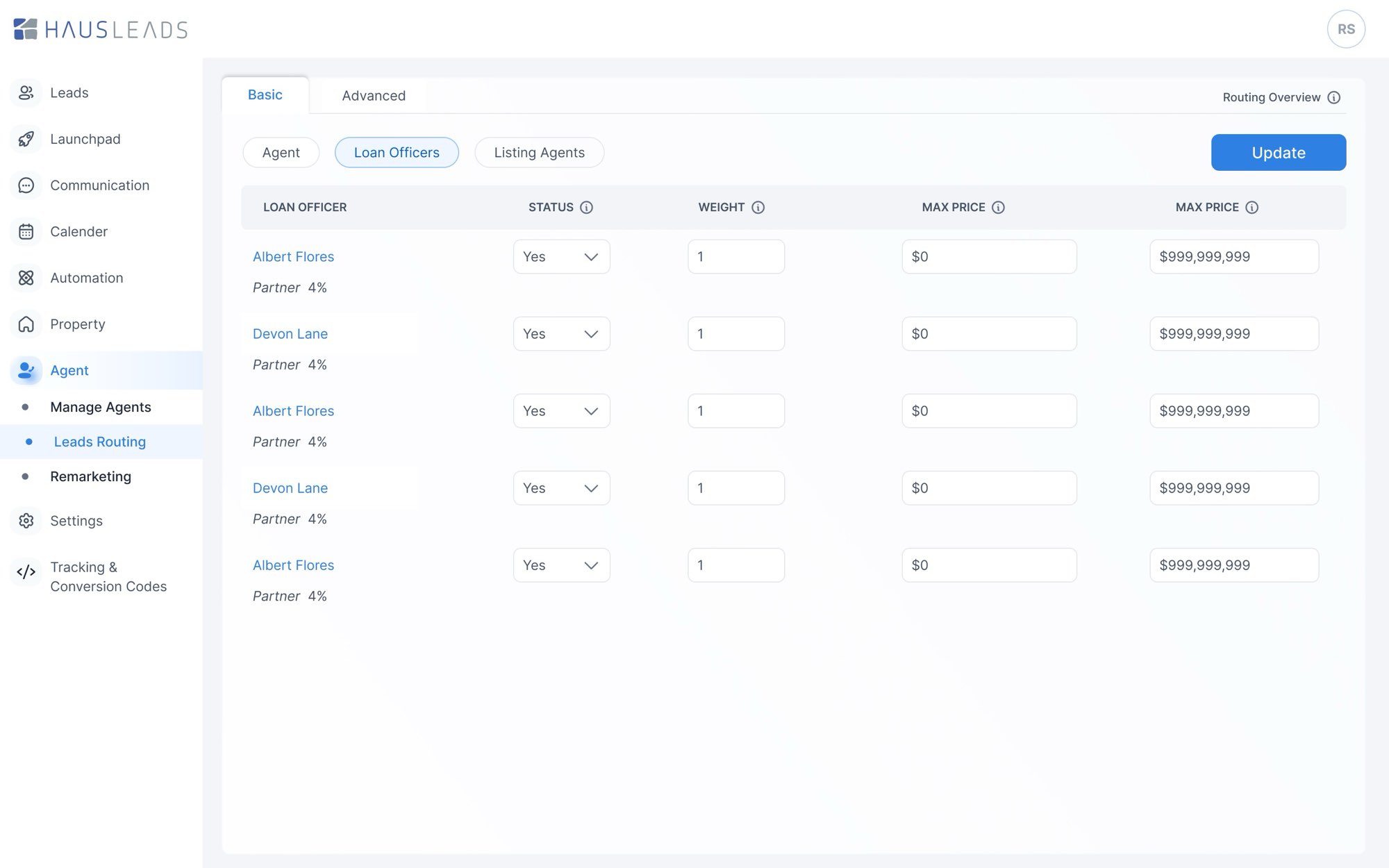
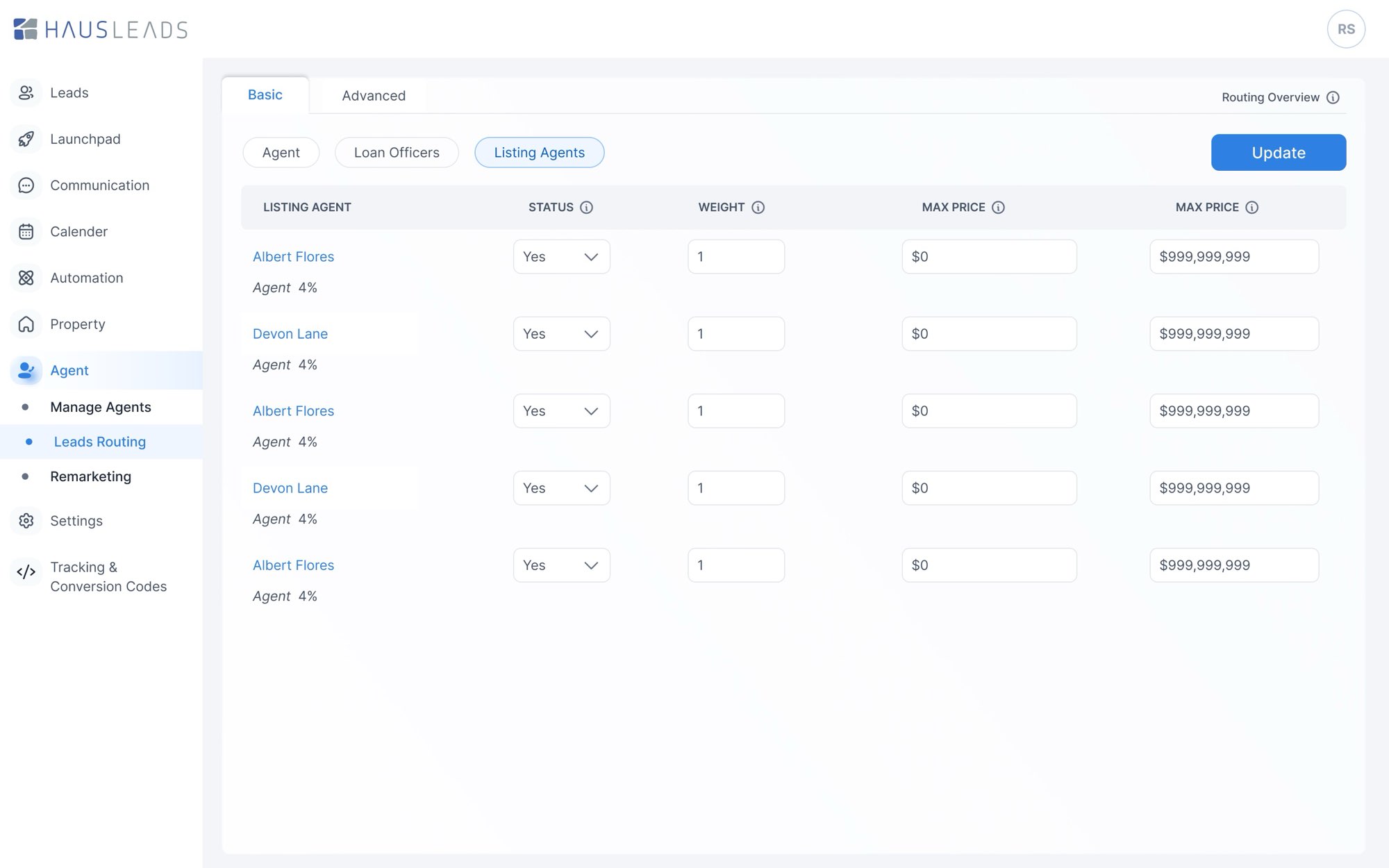
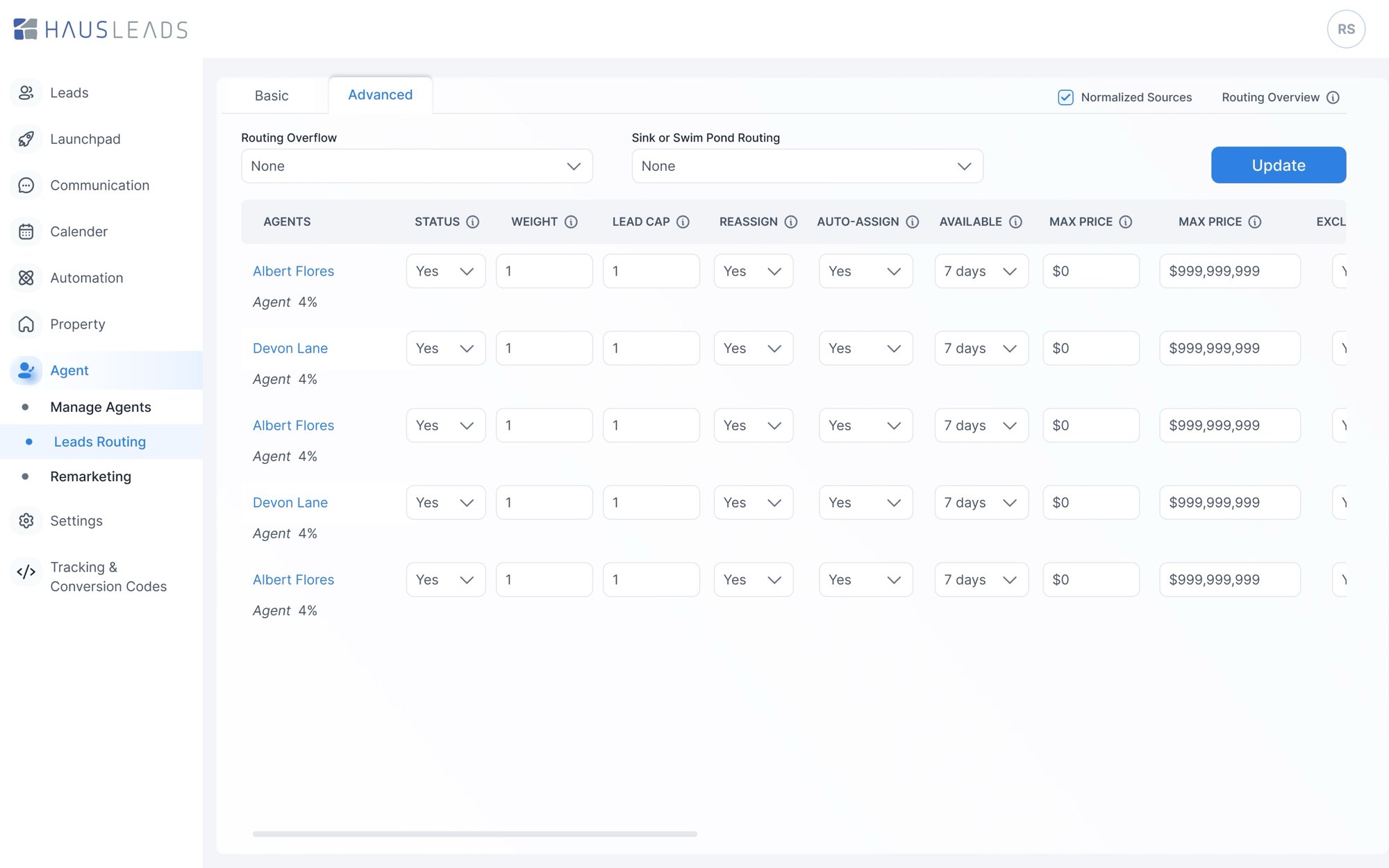
New leads are assigned by rules, so nobody has to grab them by hand. Each agent, loan officer and listing agent has a status, a weight and a price range. The Advanced tab covers lead caps, reassigning a lead if nobody picks it up within a few hours, availability and pond routing.
09 / The lead list
The screen agents start their day on.
- Why
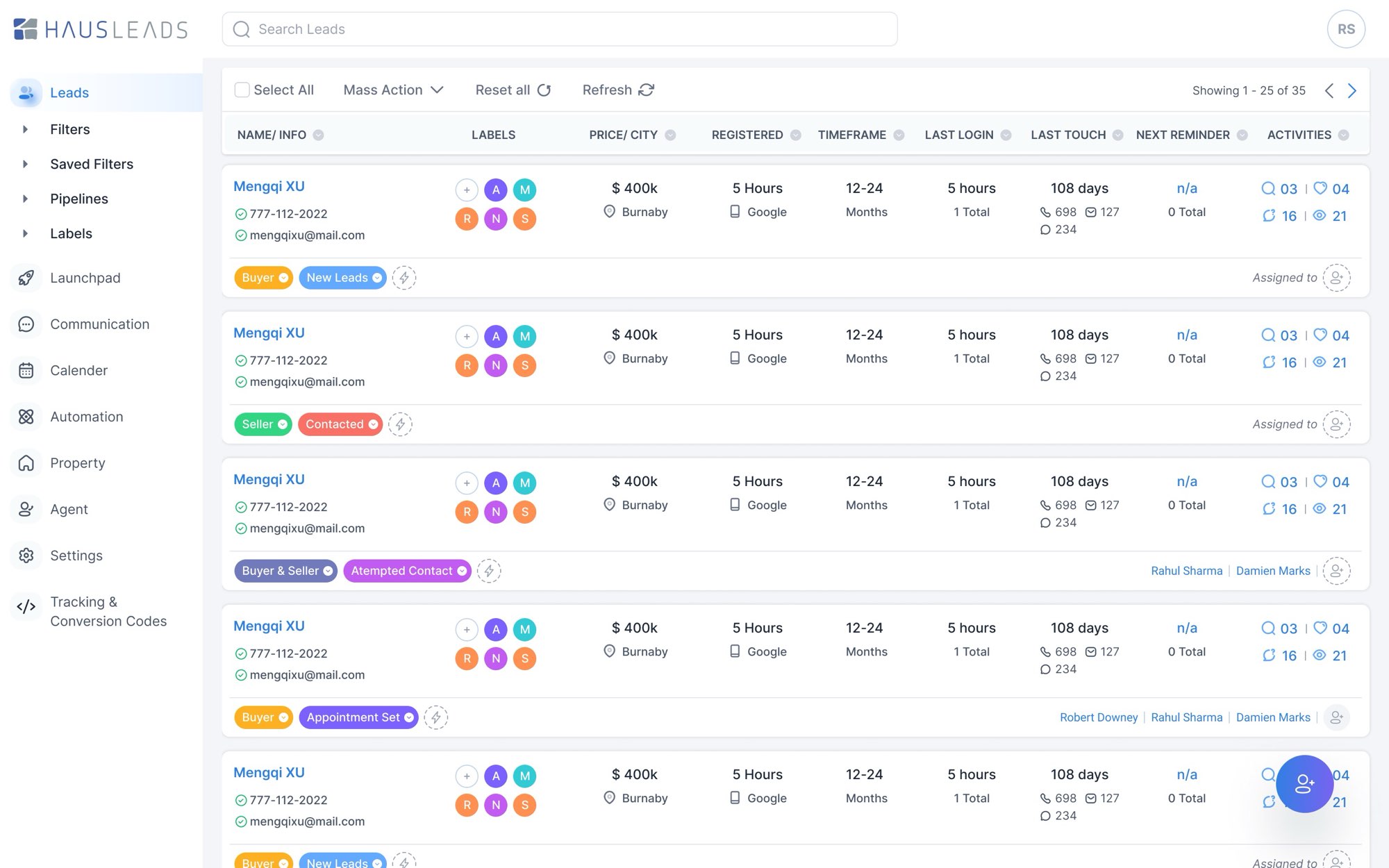
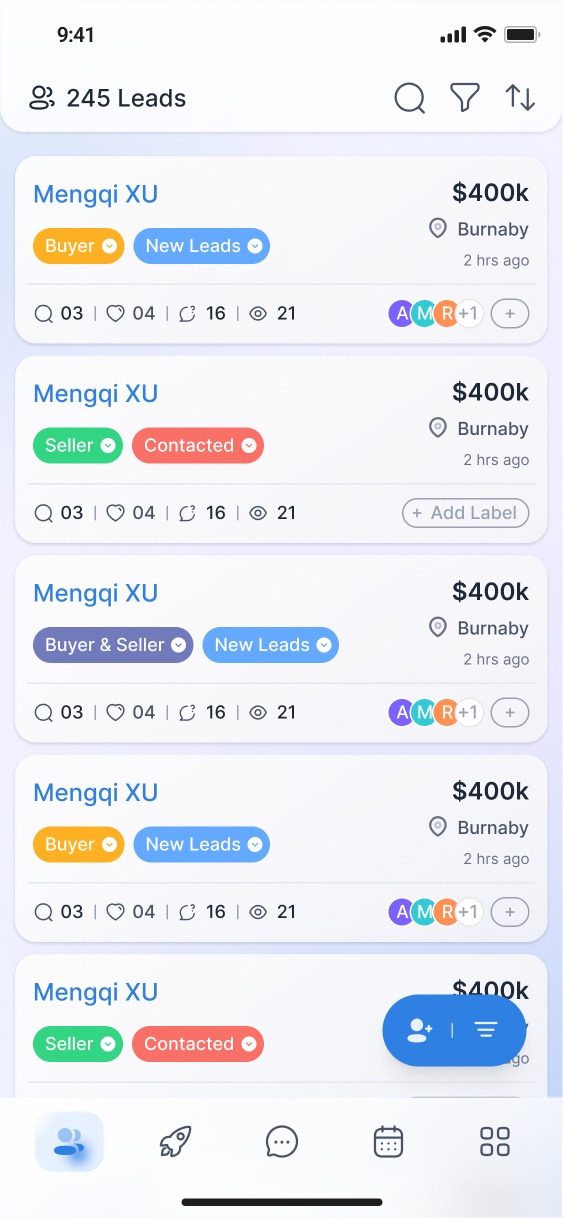
- When I talked to agents, the morning question was always the same: who do I call first? I put the answer in the row: last login, last touch, the next reminder, and counts for searches, favourites, saves and views, so they don't have to open each lead to find out.
- Trade-off
- That makes a dense row on a wide table. To keep it scannable, every column sorts on its own, and labels and pipeline stage sit as coloured chips under the name. On the phone, the row became a card.
Filters, saved filters, pipelines and labels live in the sidebar, and Mass Action handles many leads at once.
10 / The lead profile
Everything about one person.
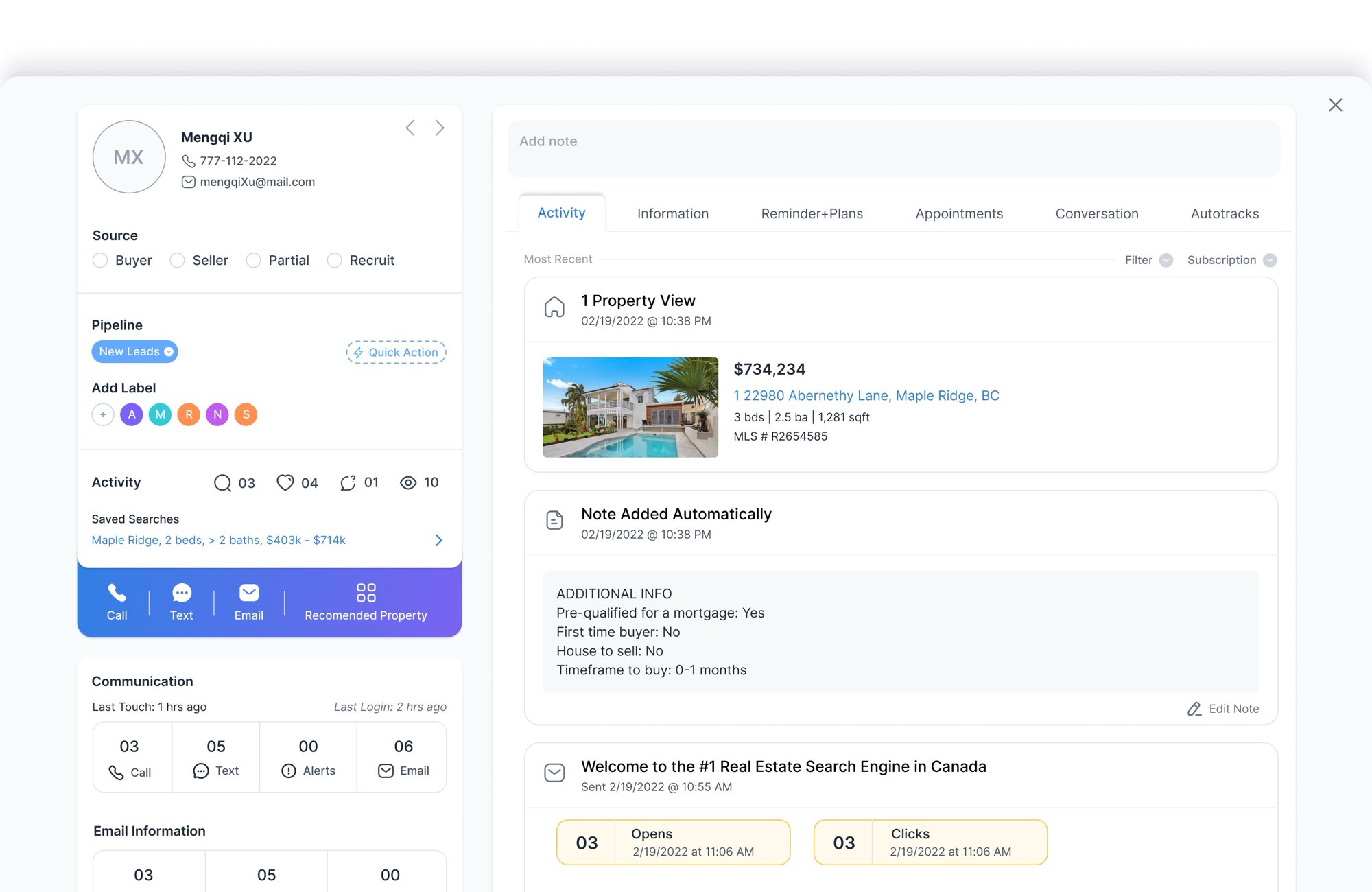
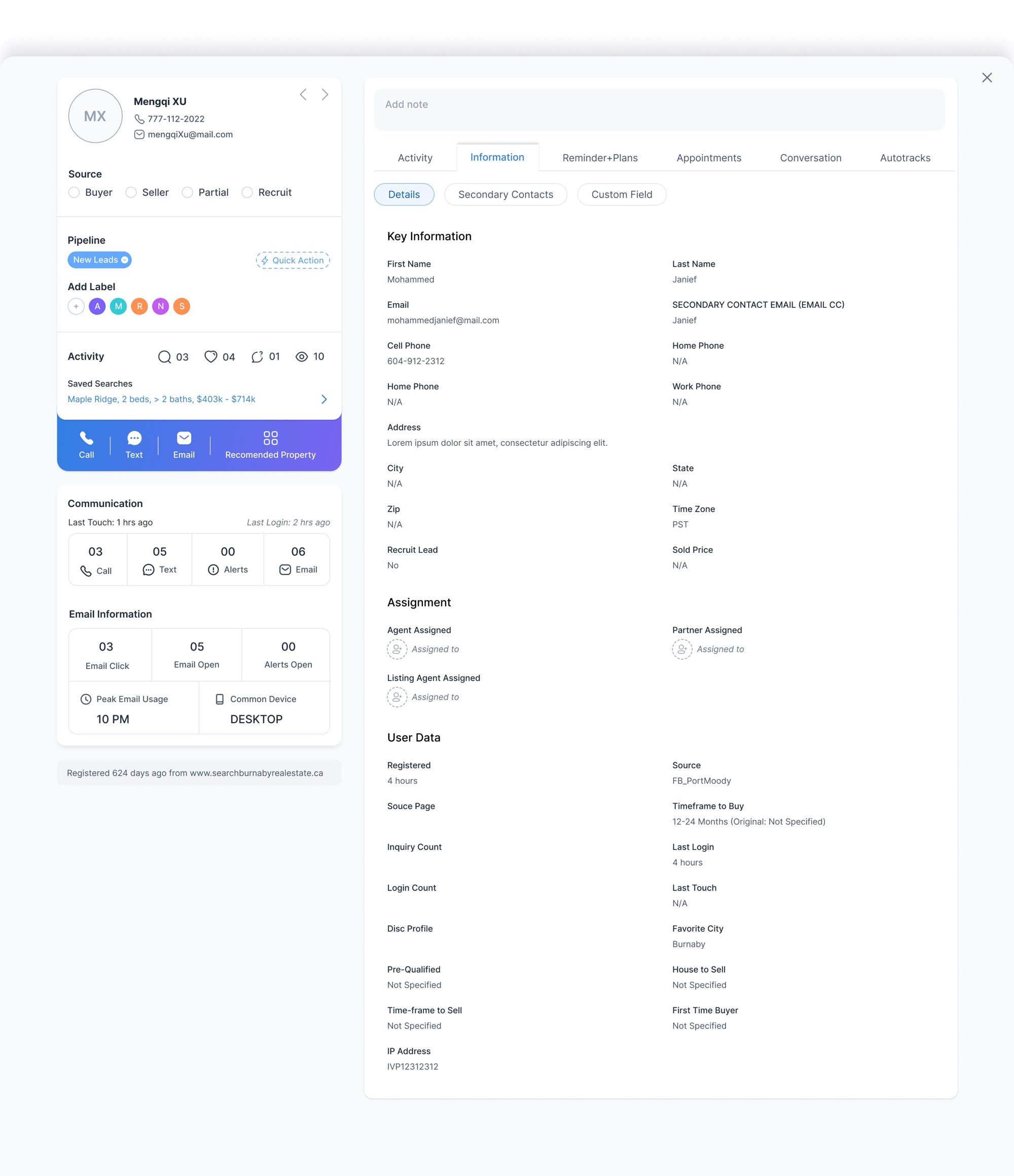
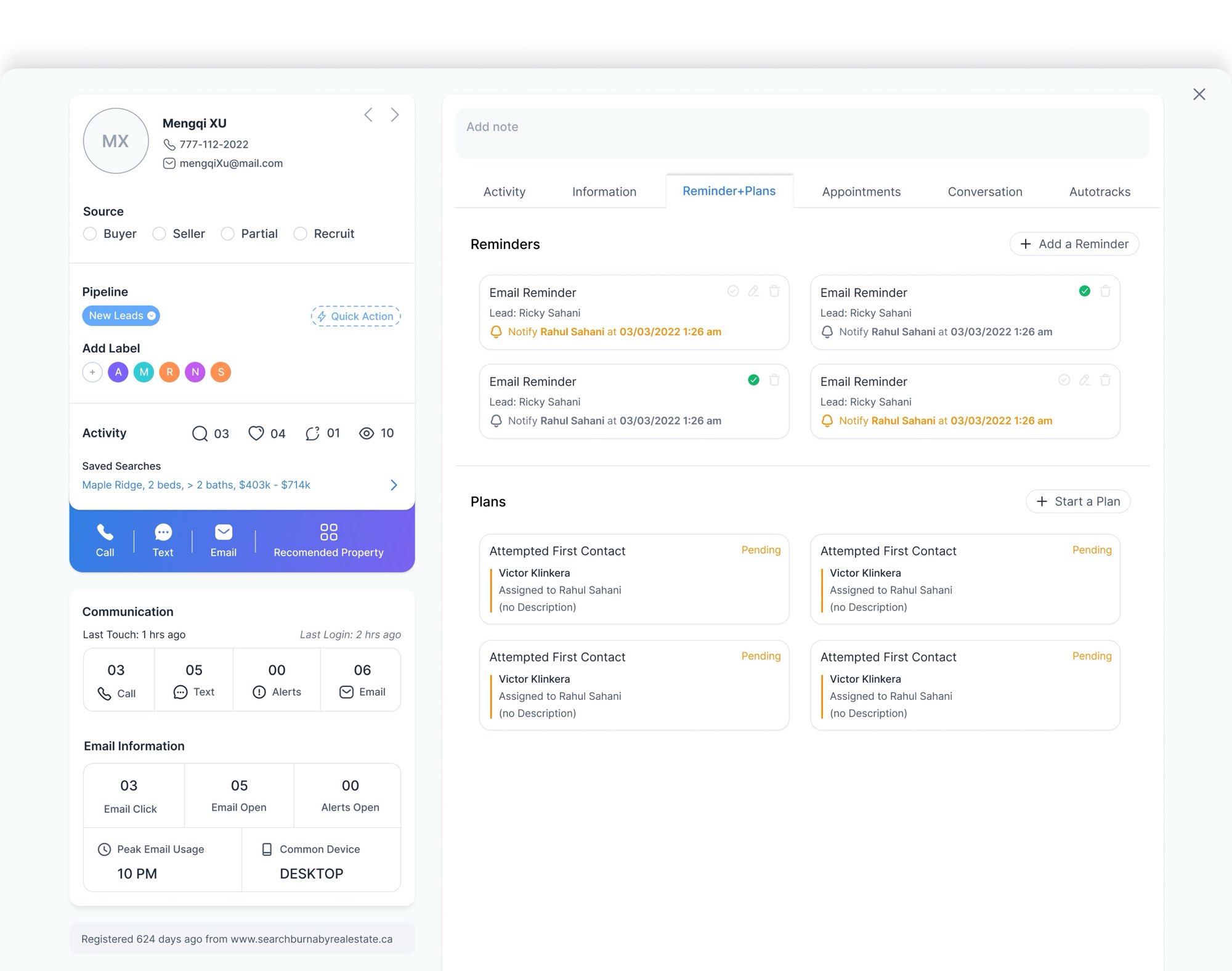
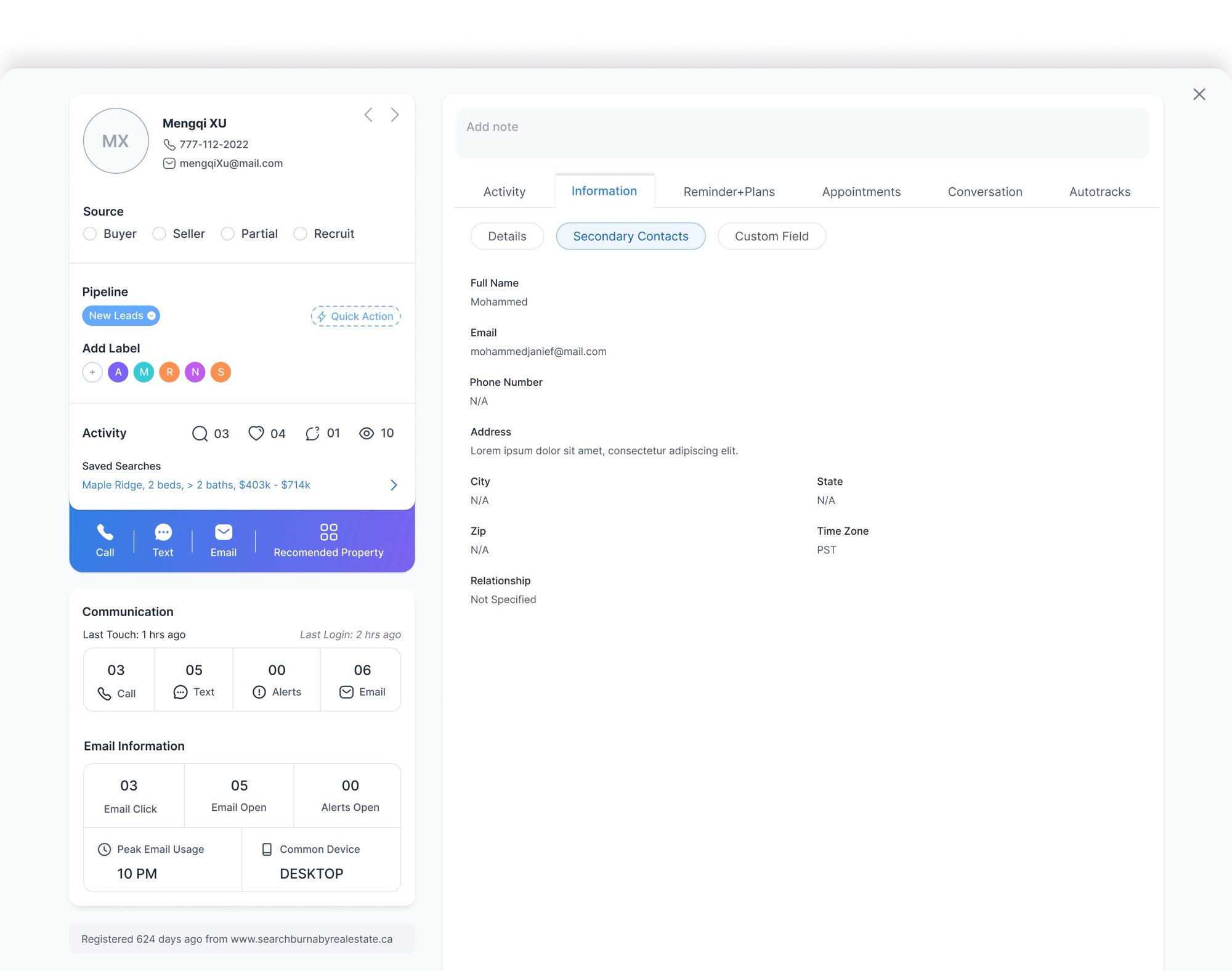
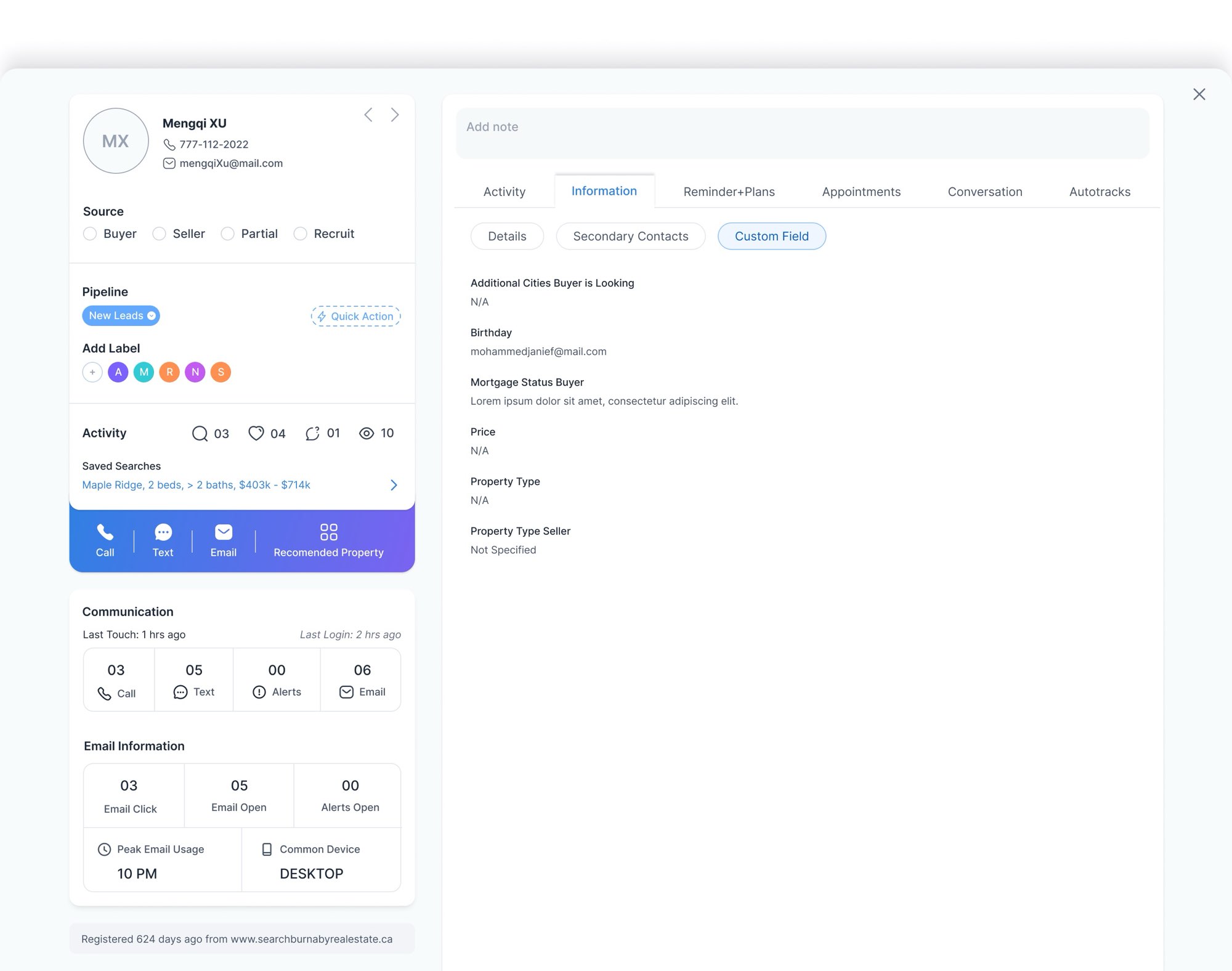
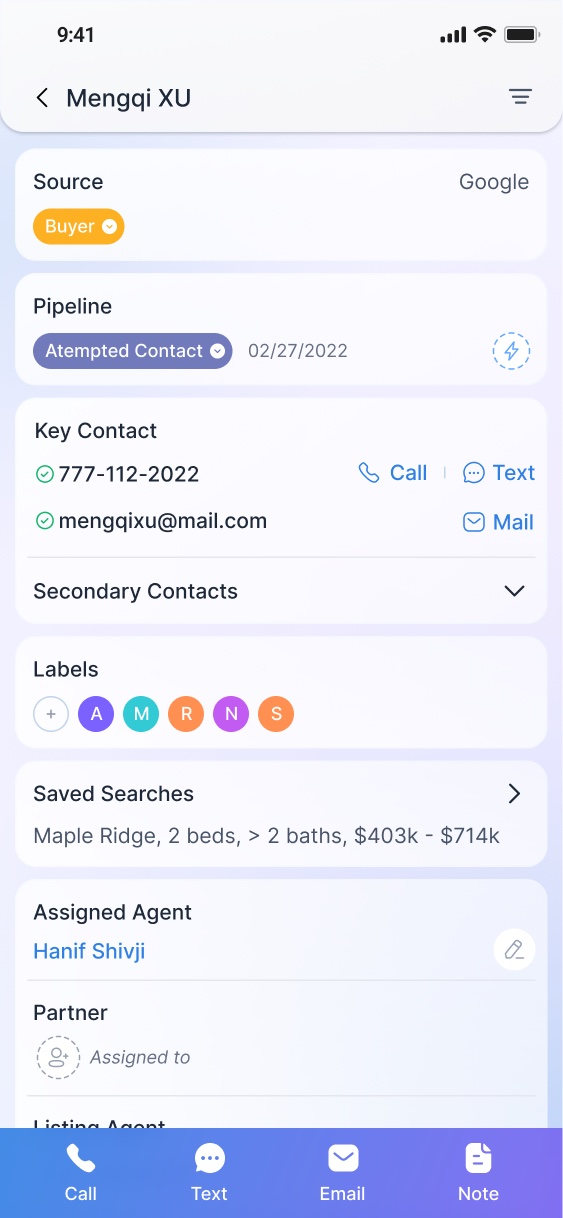
Open a lead and the left side stays put: pipeline stage, labels, saved searches, and buttons to call, text, email or recommend a property. The right side holds the history in tabs. Activity opens first because it's the quickest way to understand someone: homes they viewed, the automatic note with their sign-up answers, and the emails they opened or clicked.
11 / Communicate and plan
Email, texts, team chat and a calendar, inside the CRM.
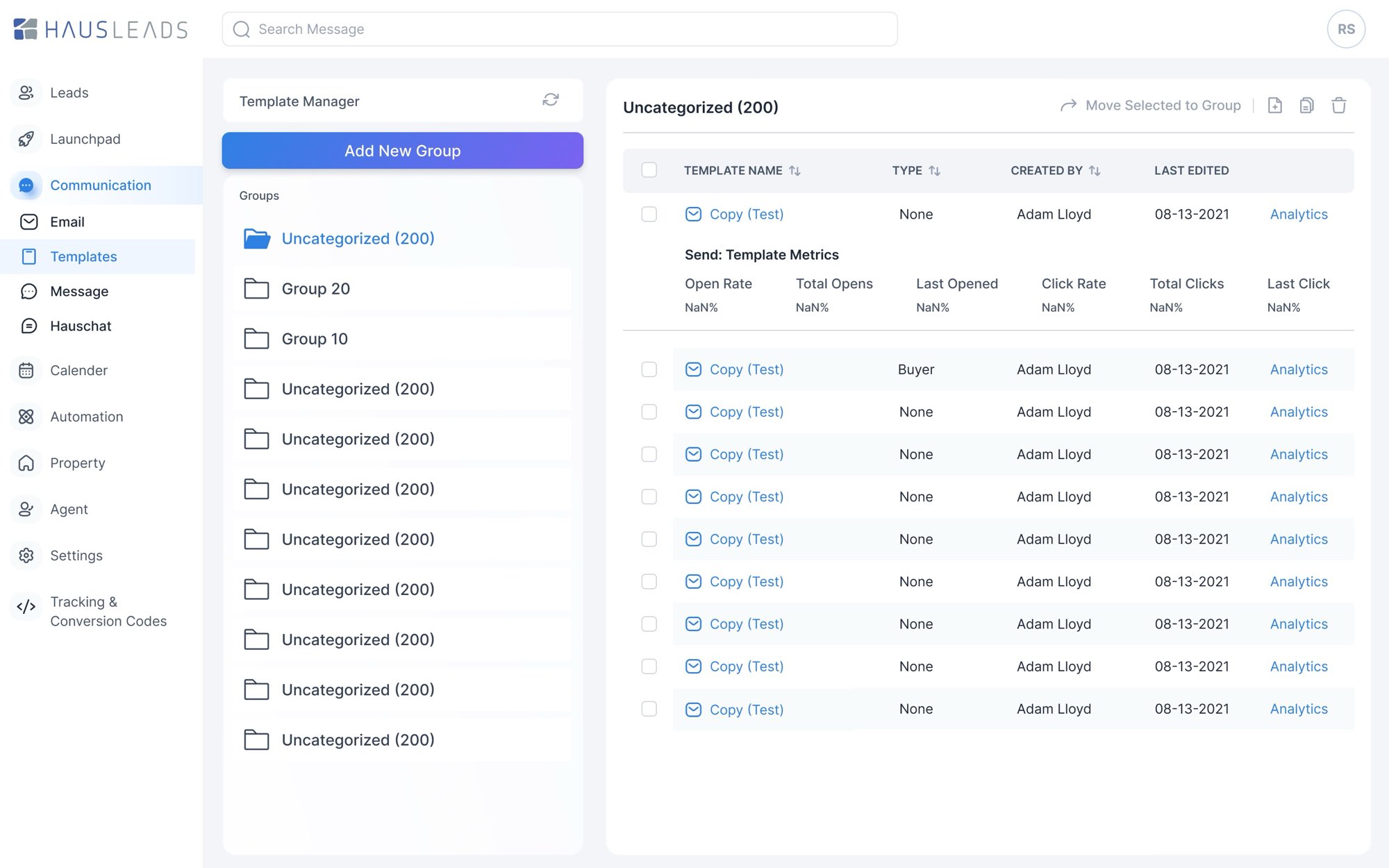
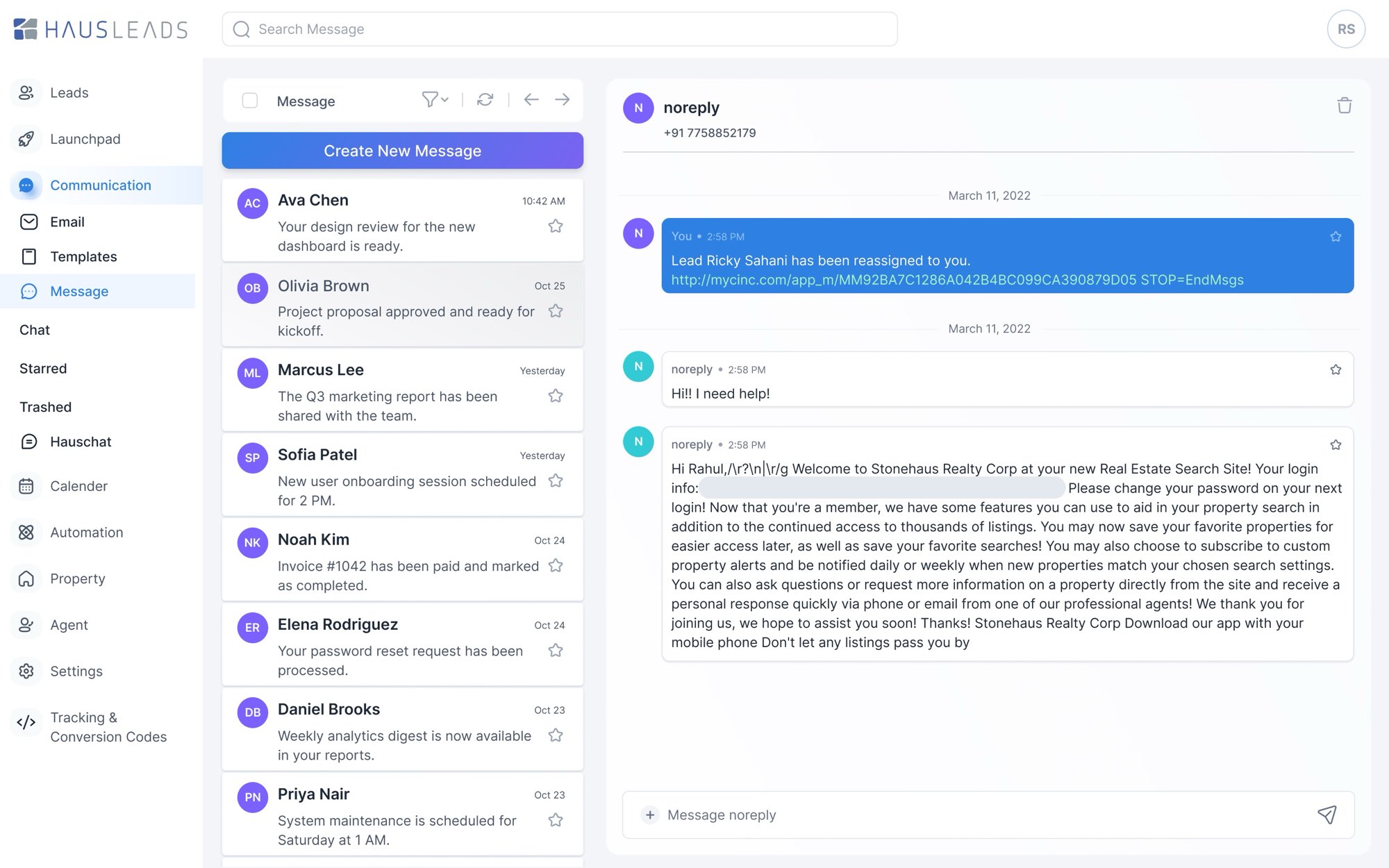
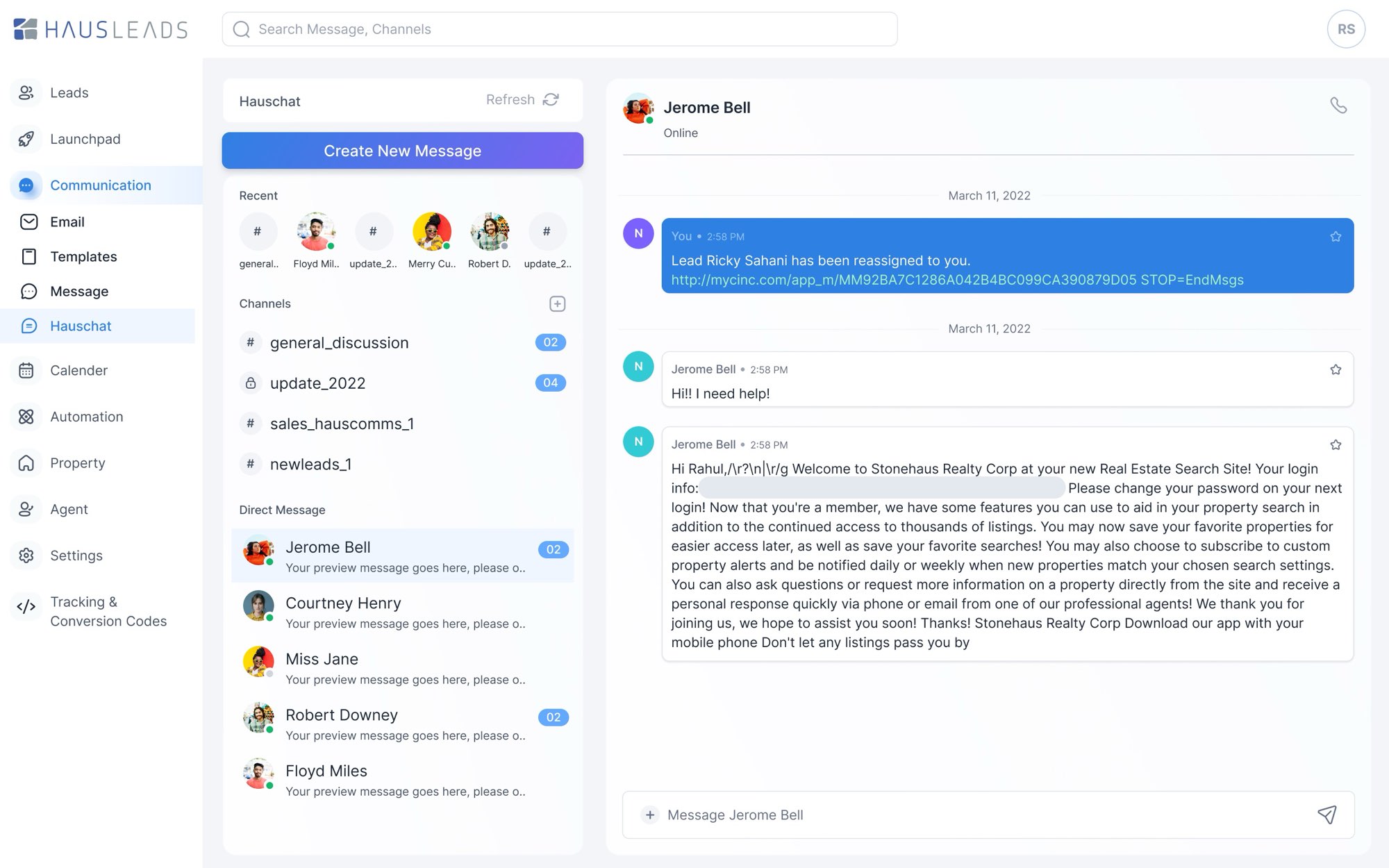
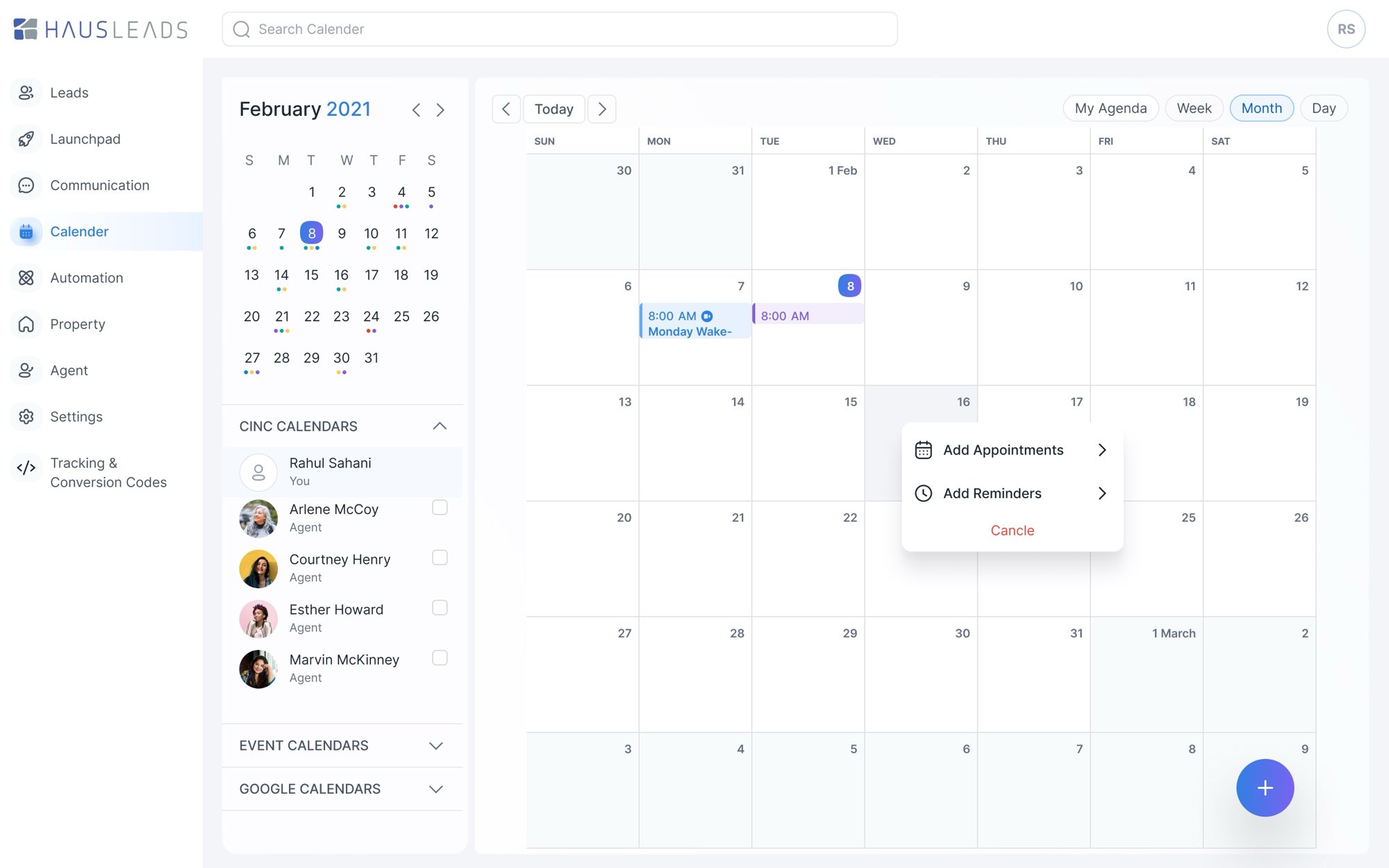
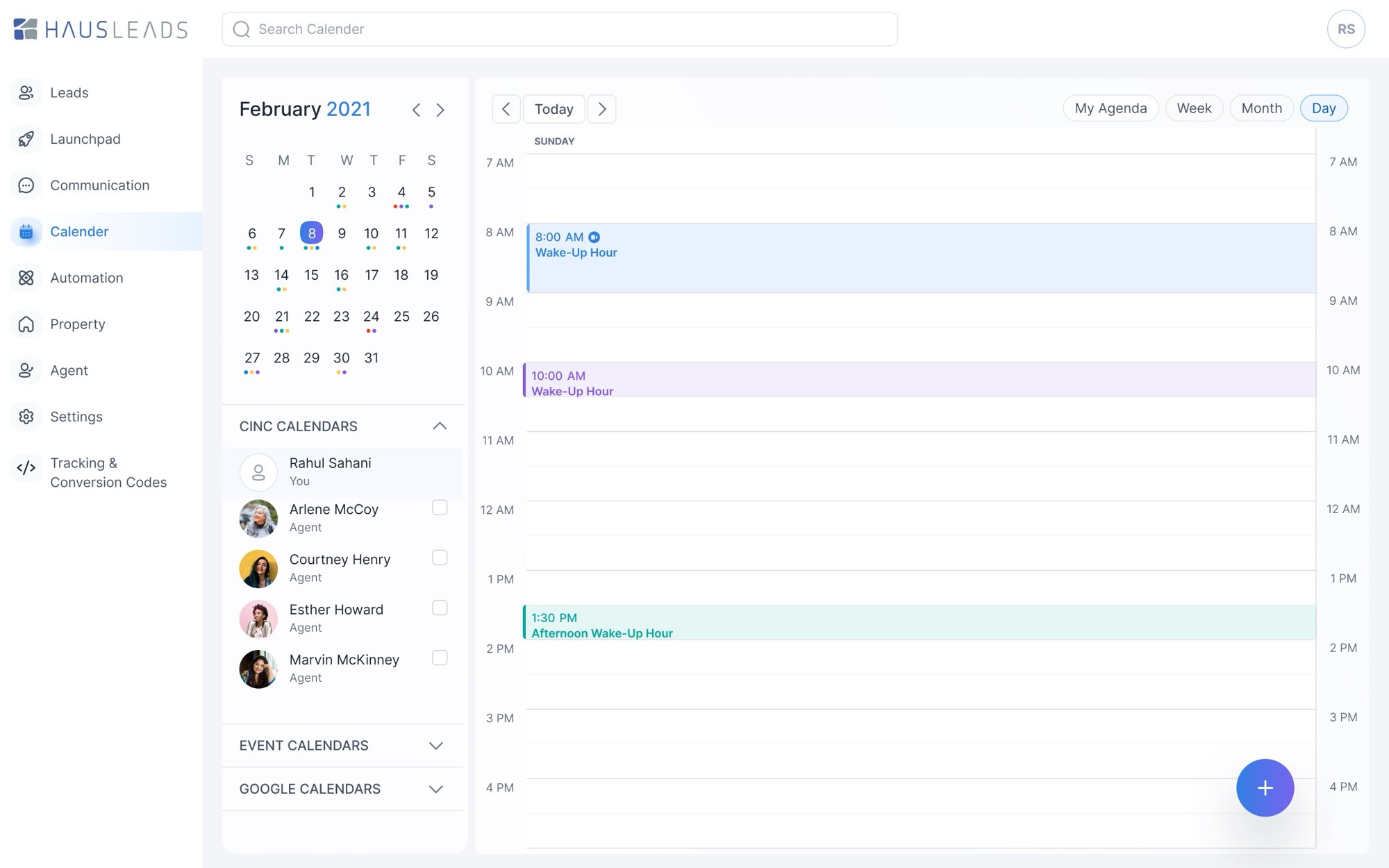
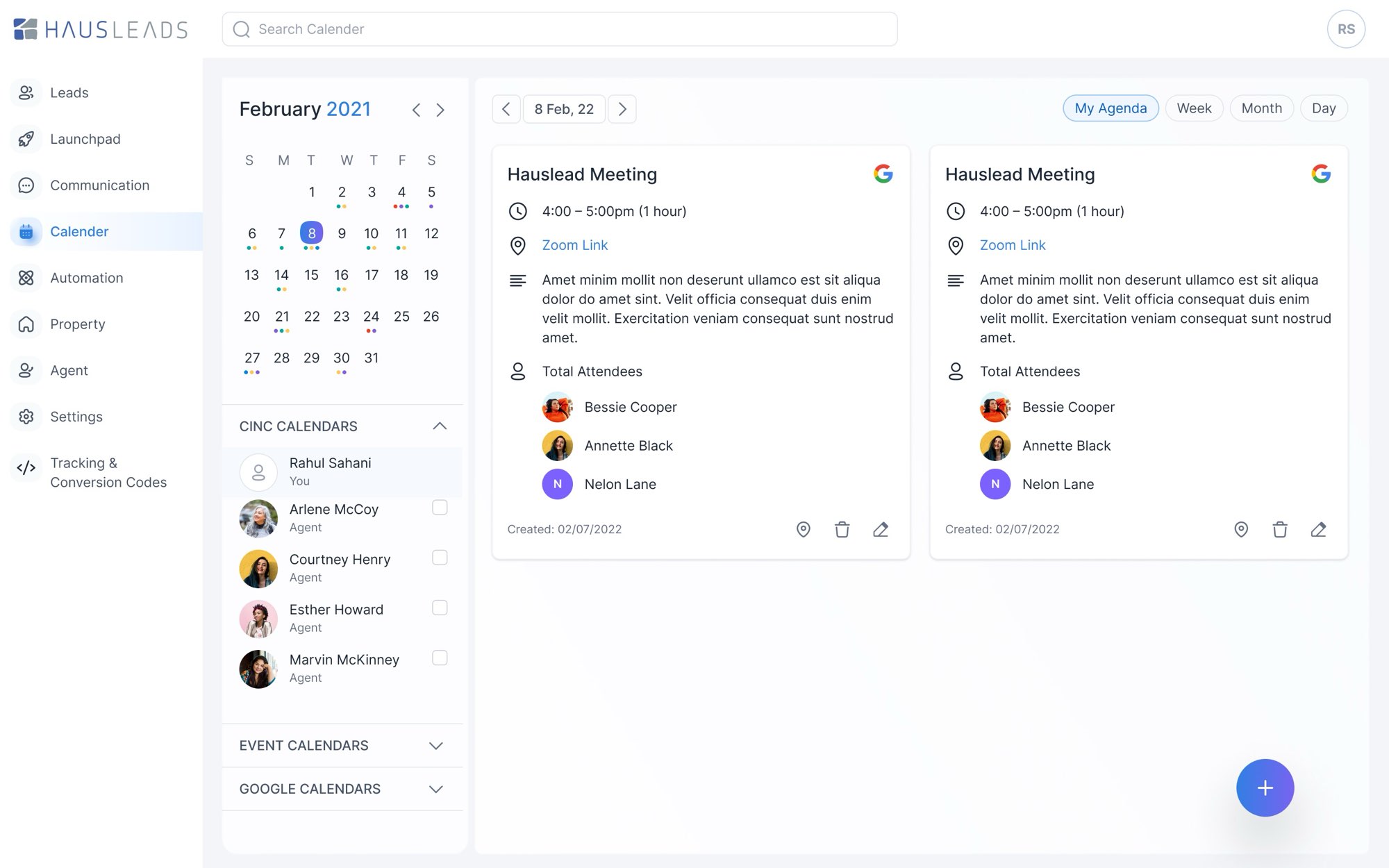
All four were new. Before, conversations about a lead happened in other tools, so they never showed up in the lead's history. I kept each one close to something agents already use: an inbox with a reading pane, a texting thread, Slack-style channels for the team (we called it Hauschat), and a normal calendar with day, week, month and agenda views where you can overlay teammates' calendars.
Email templates show their open and click rates, so agents can see which ones work.
12 / Automation
Automation agents can actually follow.
- Why
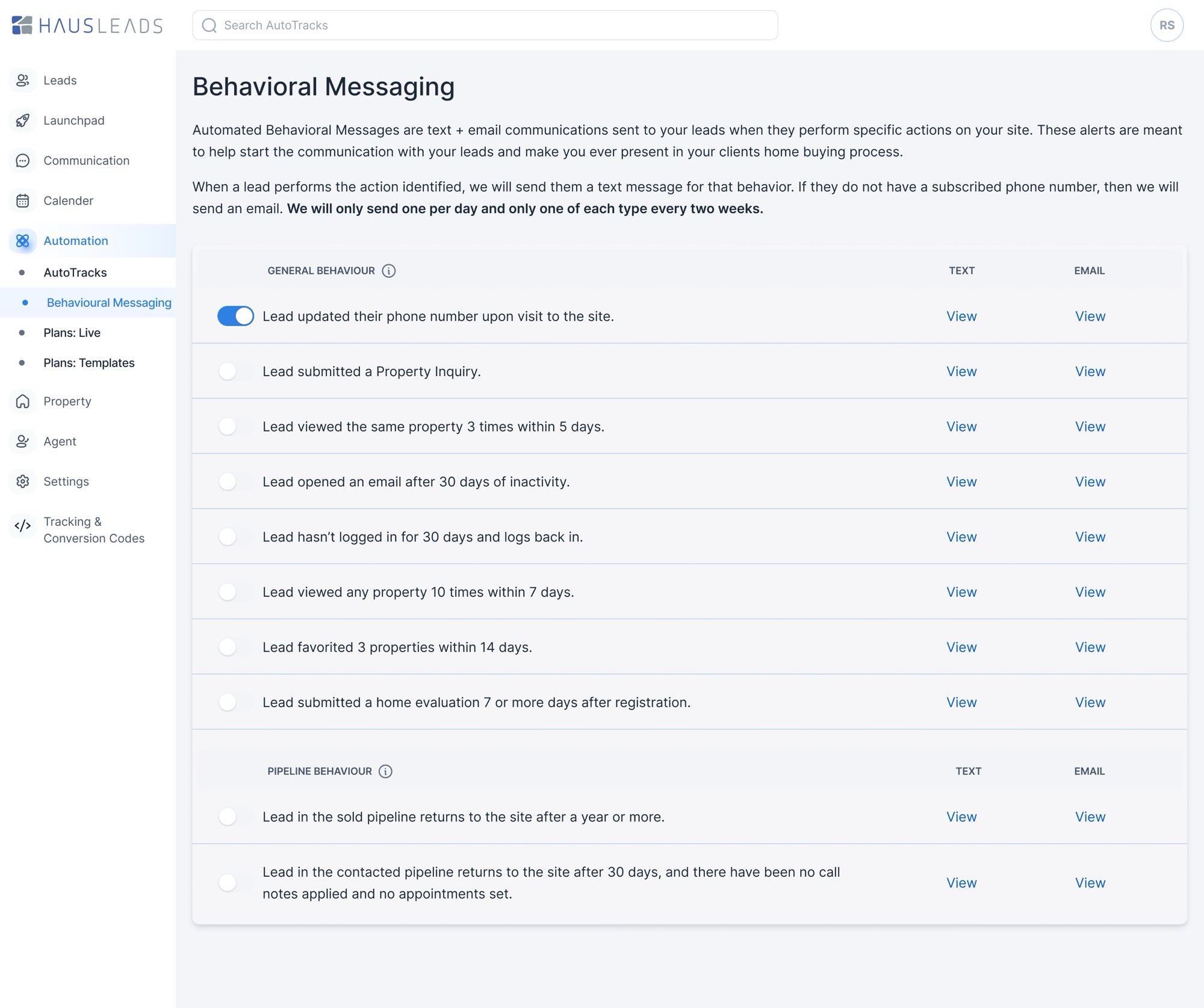
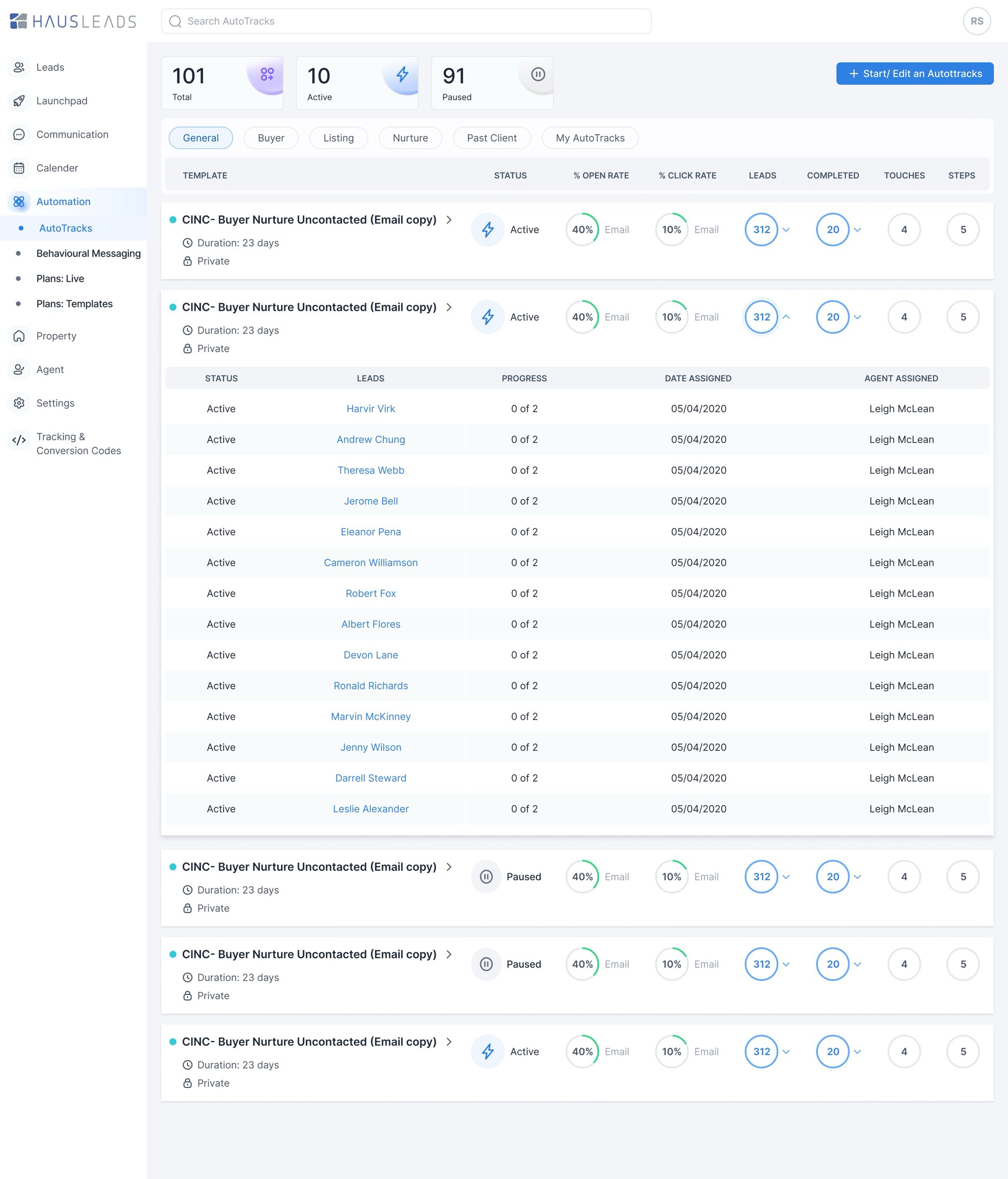
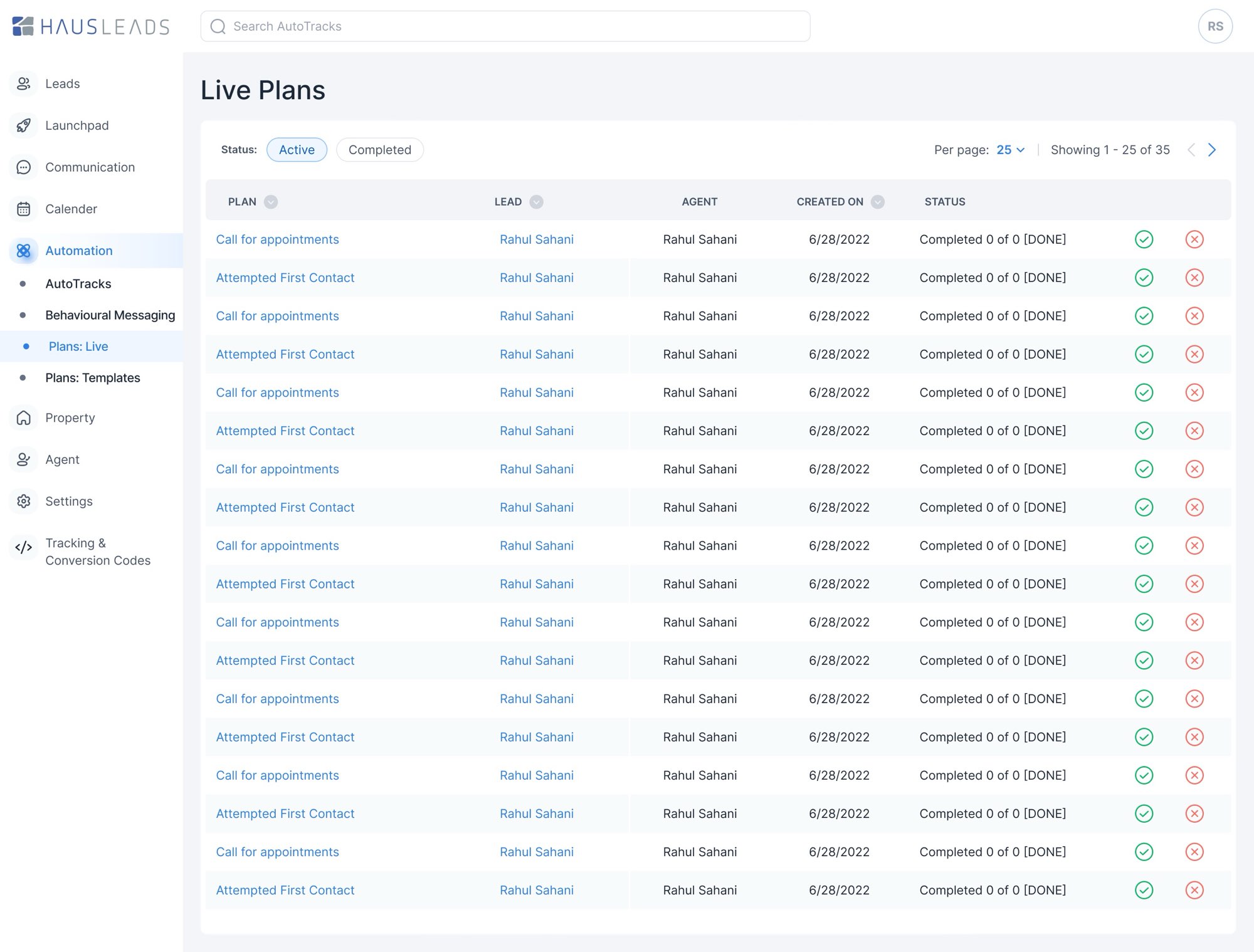
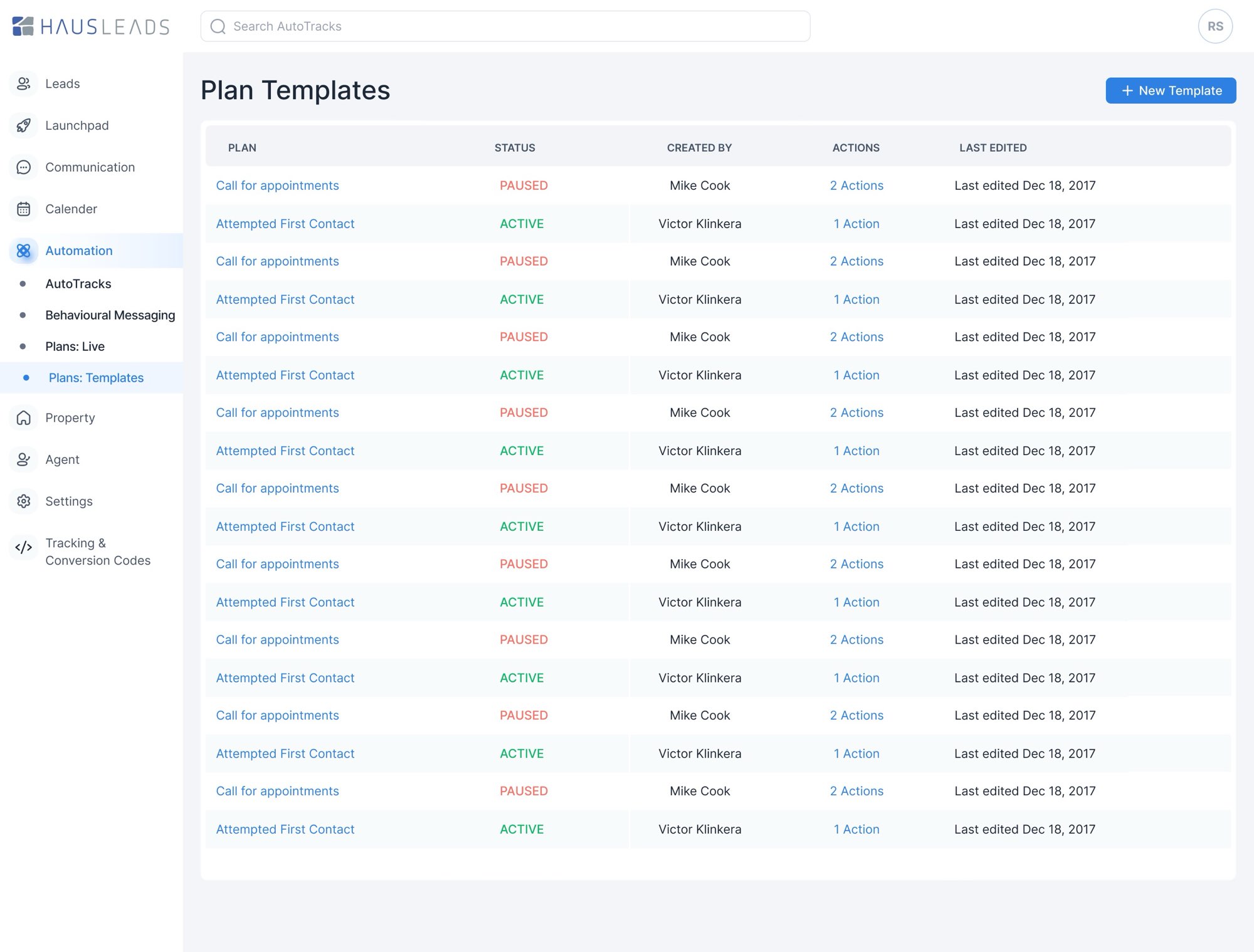
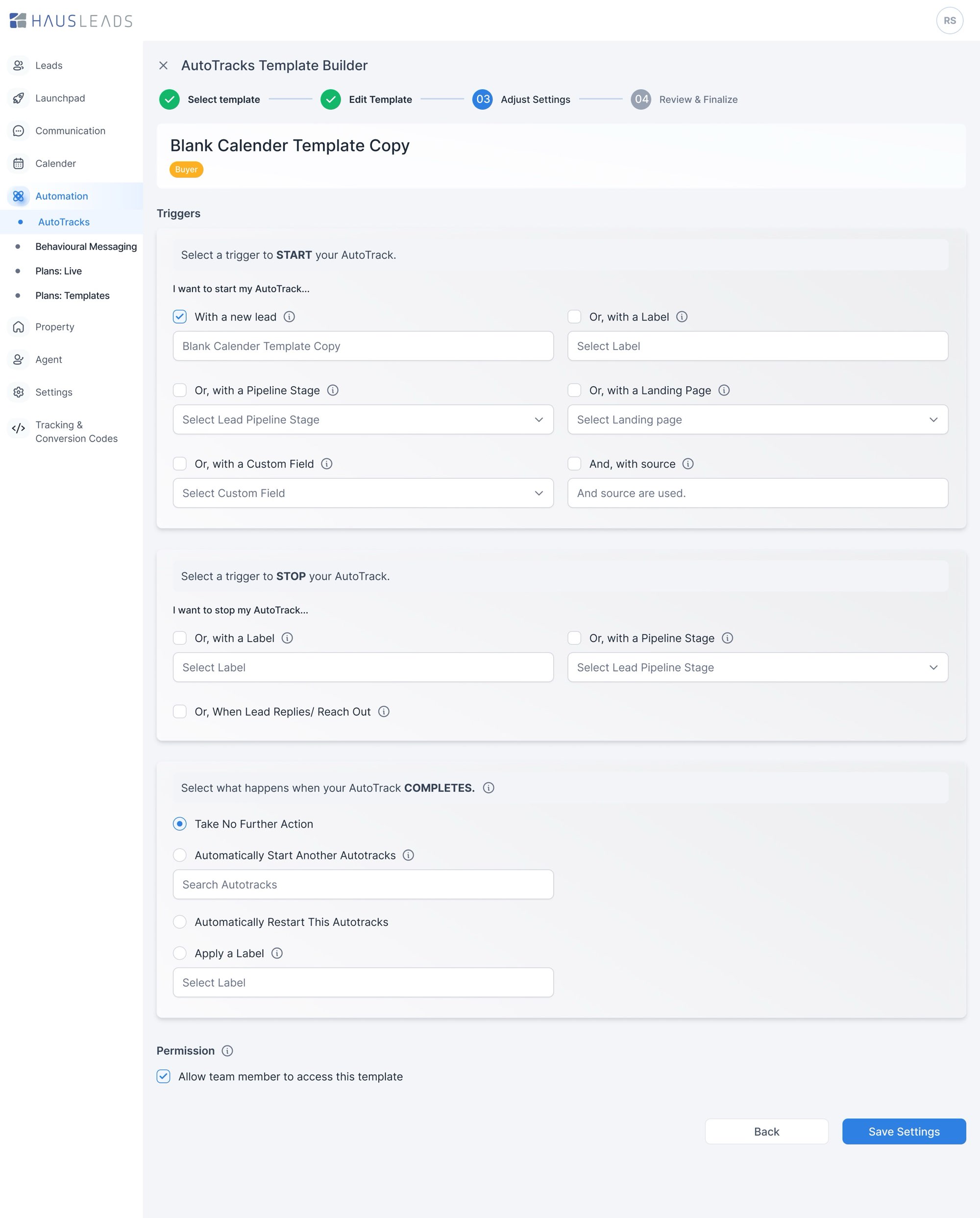
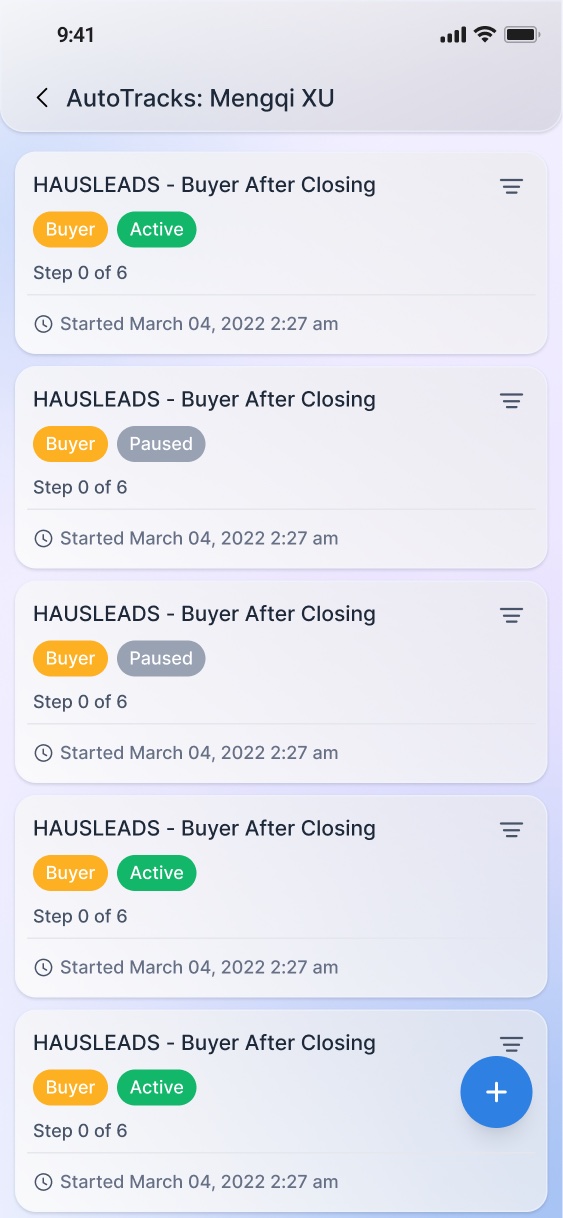
- This took the most time. Automation had grown piece by piece, and agents couldn't tell what was already going out to a lead. I reorganised it by what starts a message: something the lead did (behavioural messages), a sequence over days (AutoTracks), or a plan an agent runs. Each has its own screen, and the lead profile shows which ones are running for that person.
- Trade-off
- We capped behavioural messages at one a day, and one of each type every two weeks. Some triggers won't fire because of that. I'd rather that than a lead getting five texts in one afternoon.
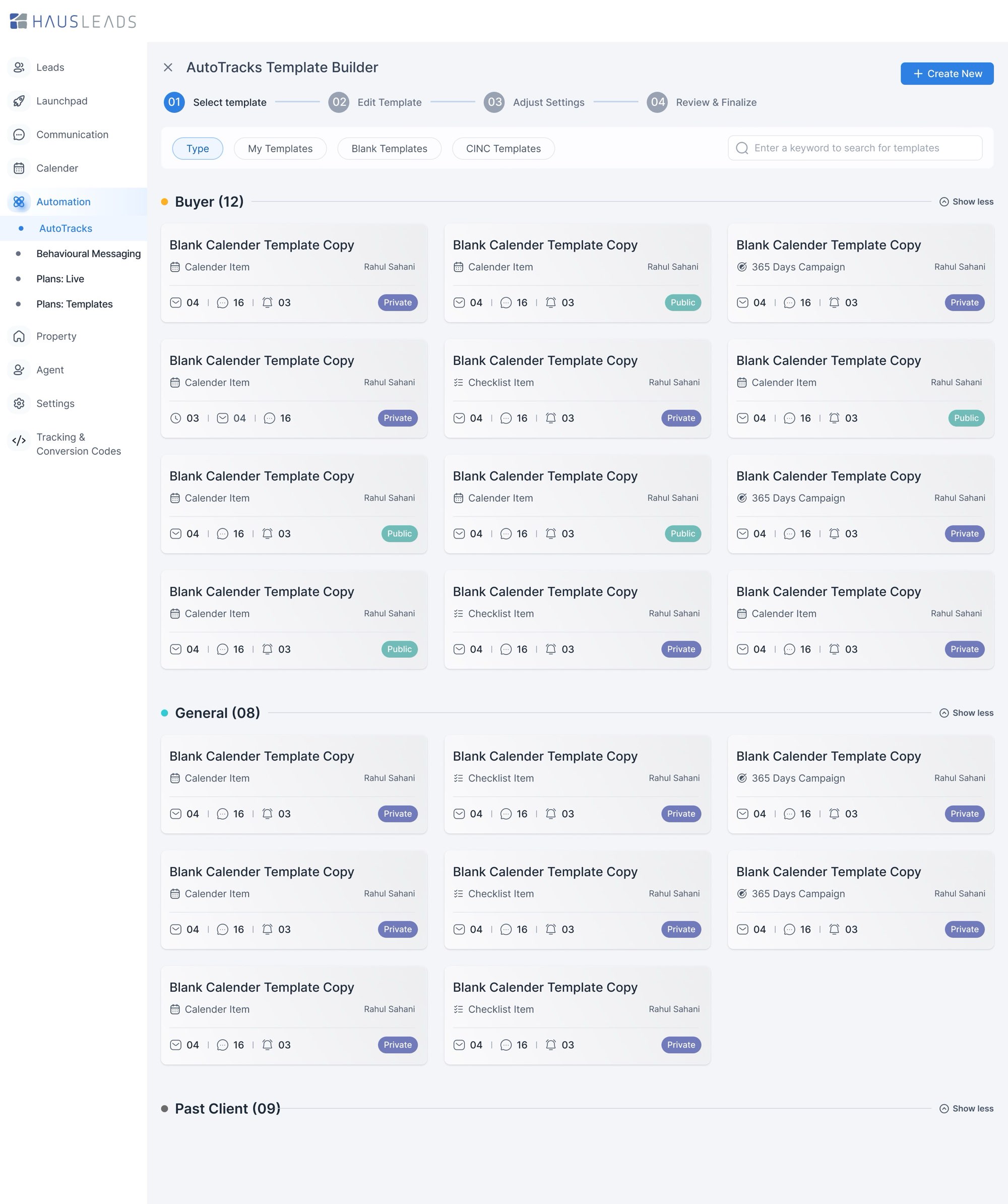
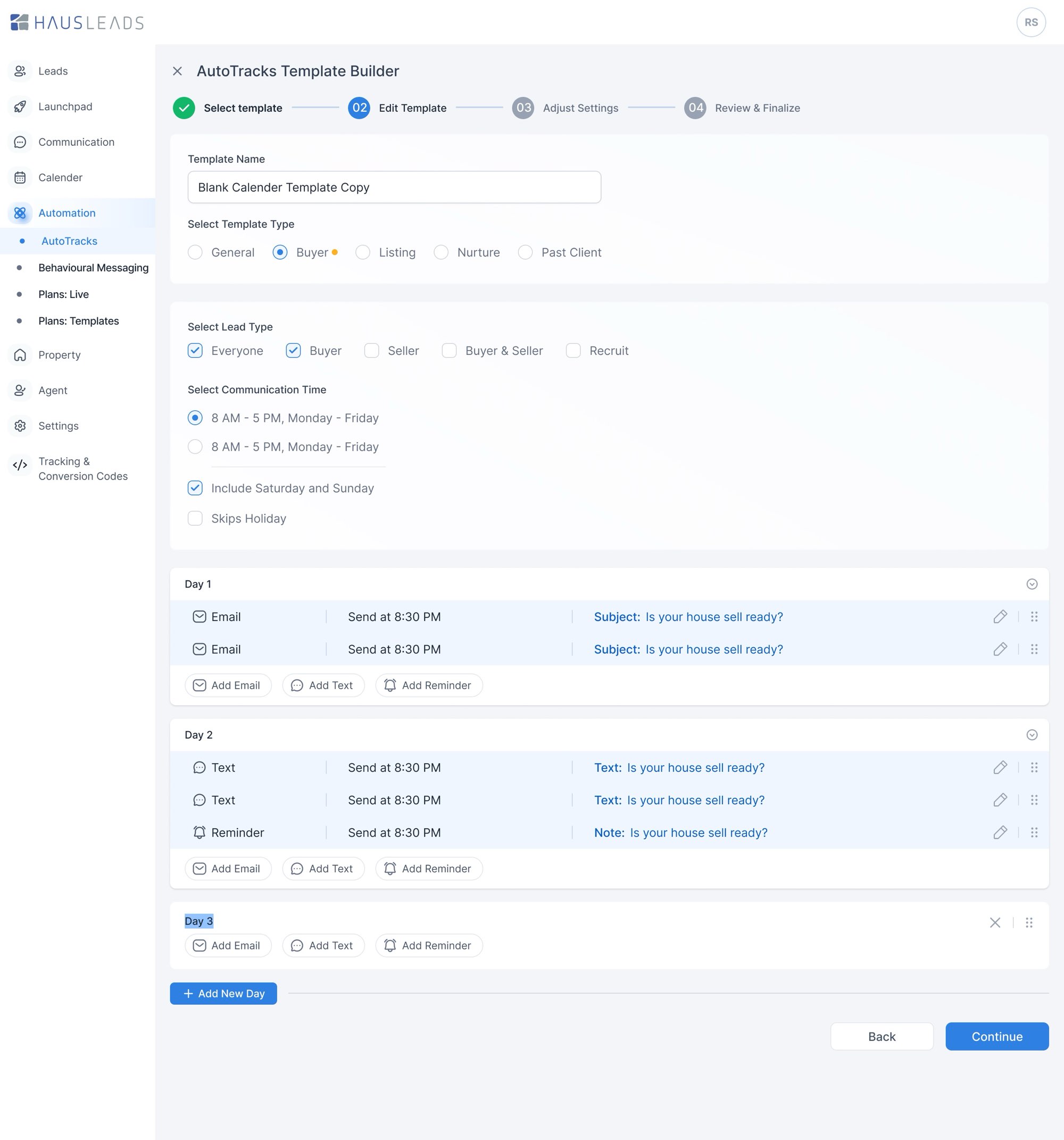
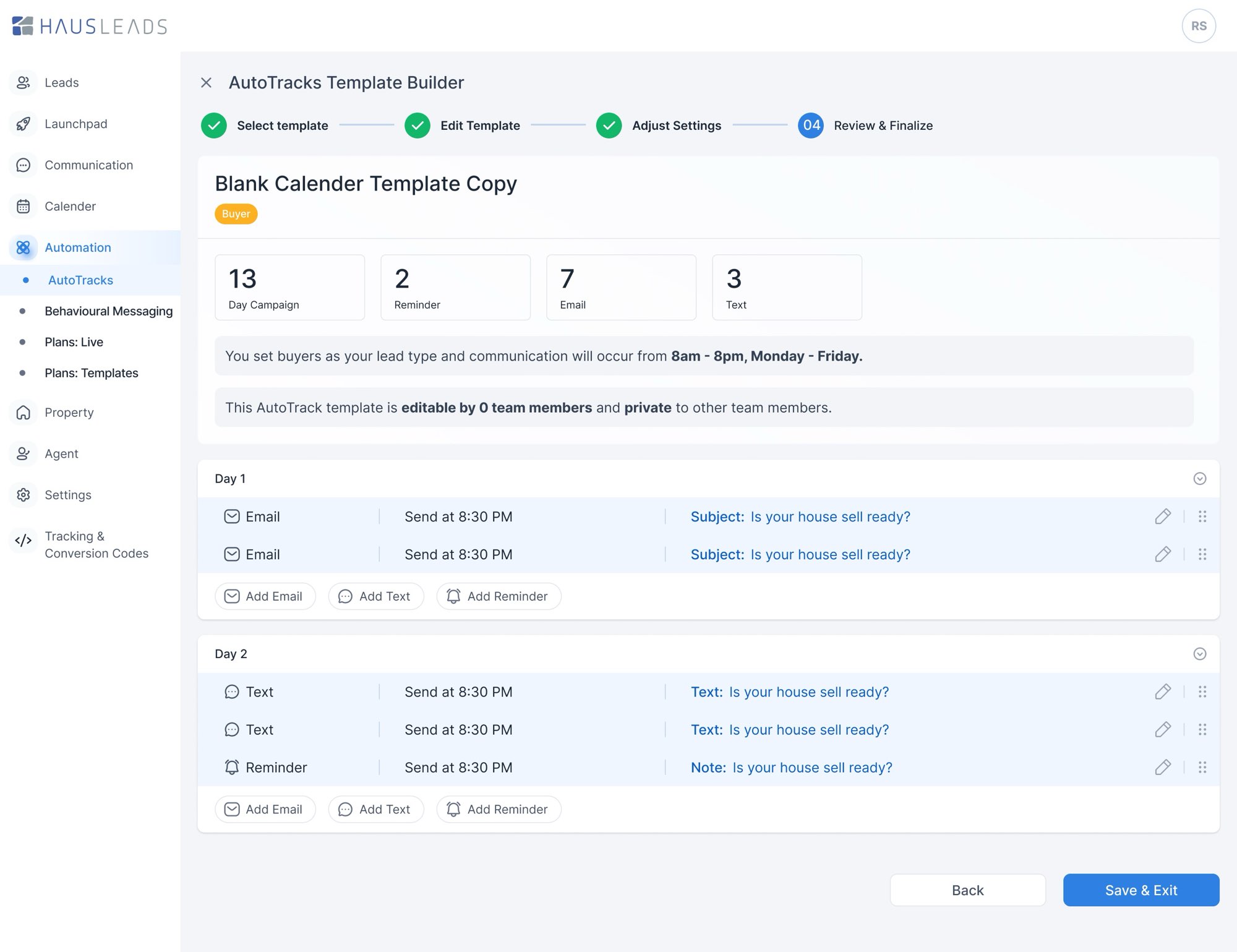
Building an AutoTrack takes four steps: pick a template, edit each day's emails, texts and reminders, set what starts and stops it, then review the whole thing before saving.
13 / Oversight
The manager's view.
- Why
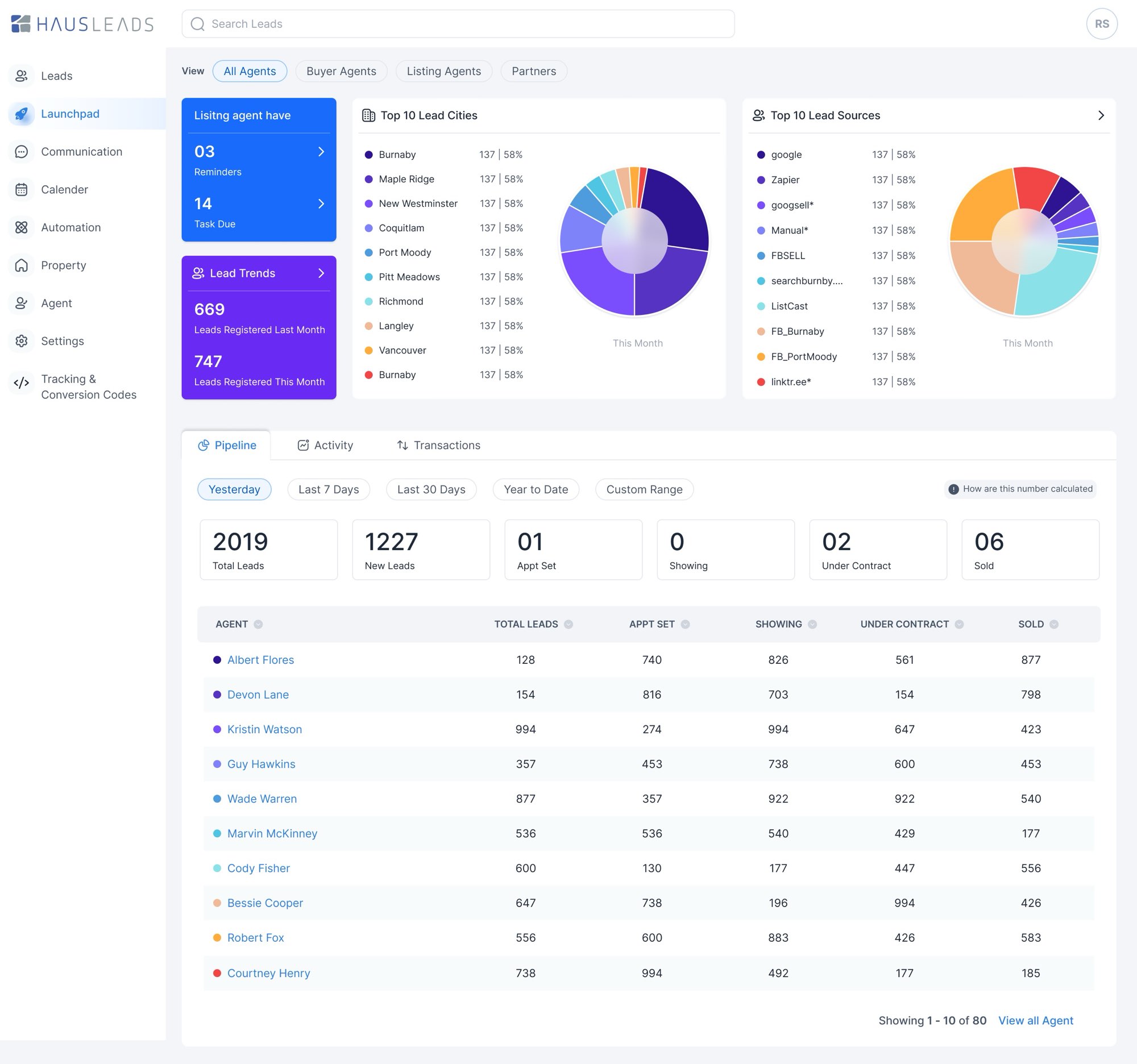
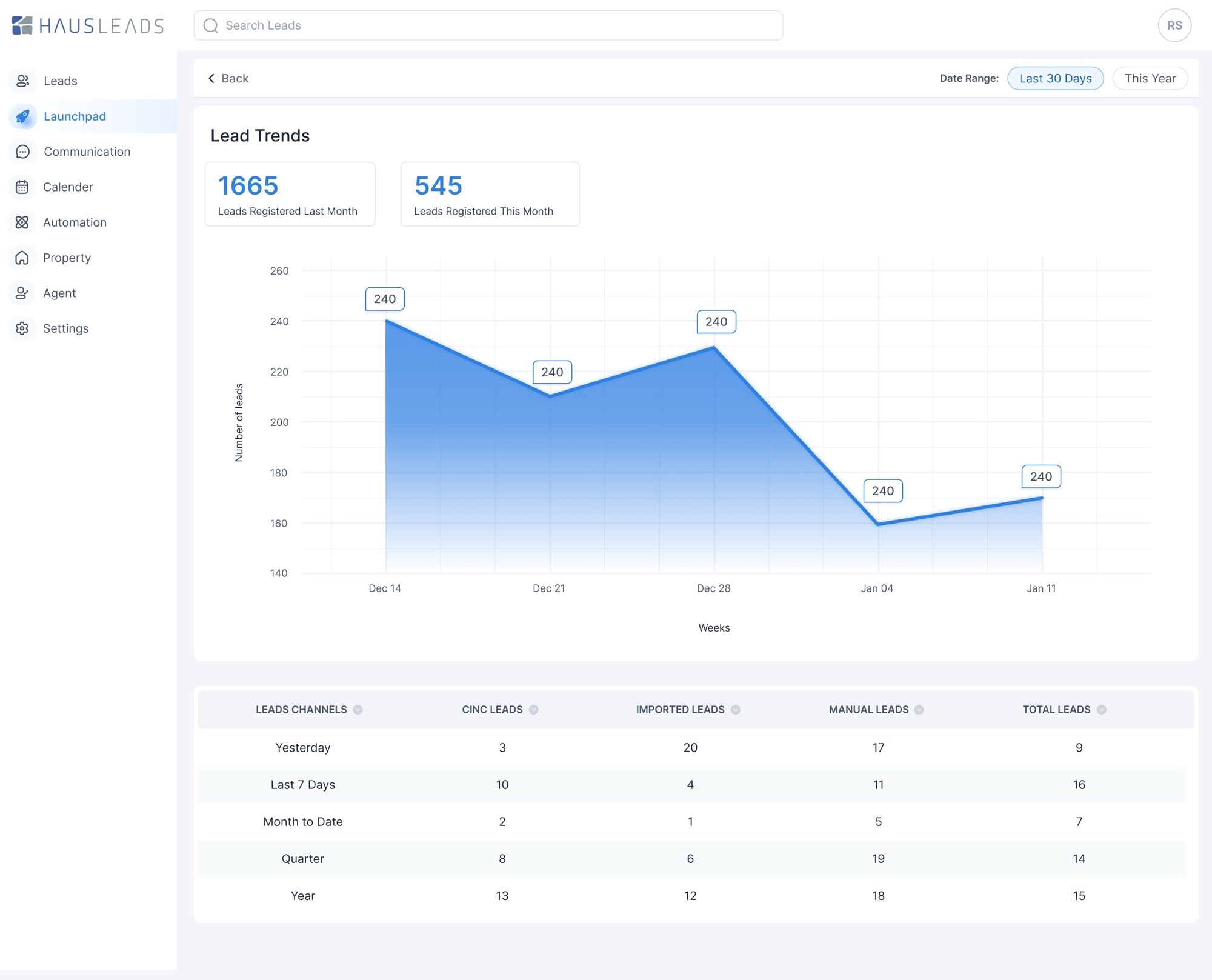
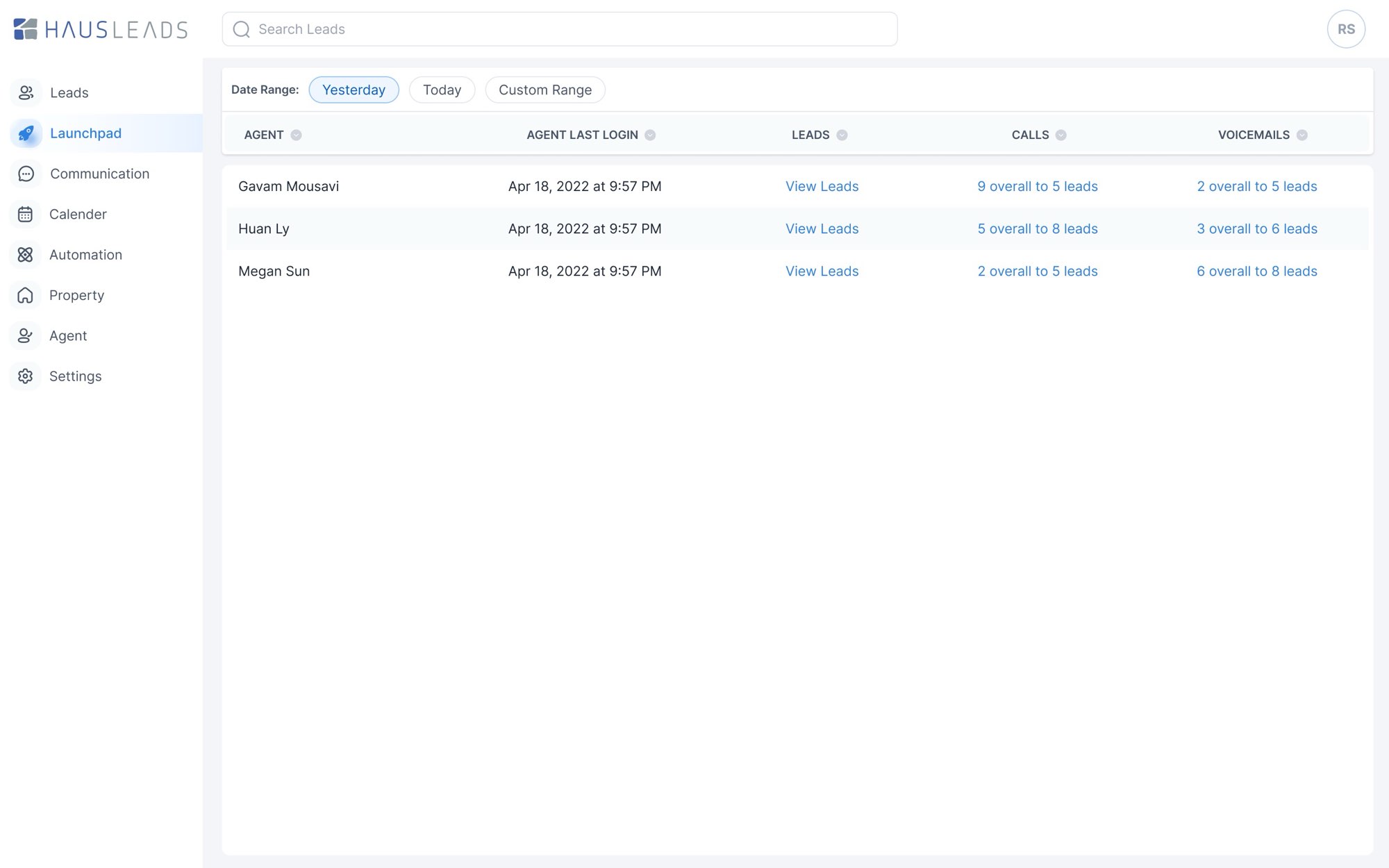
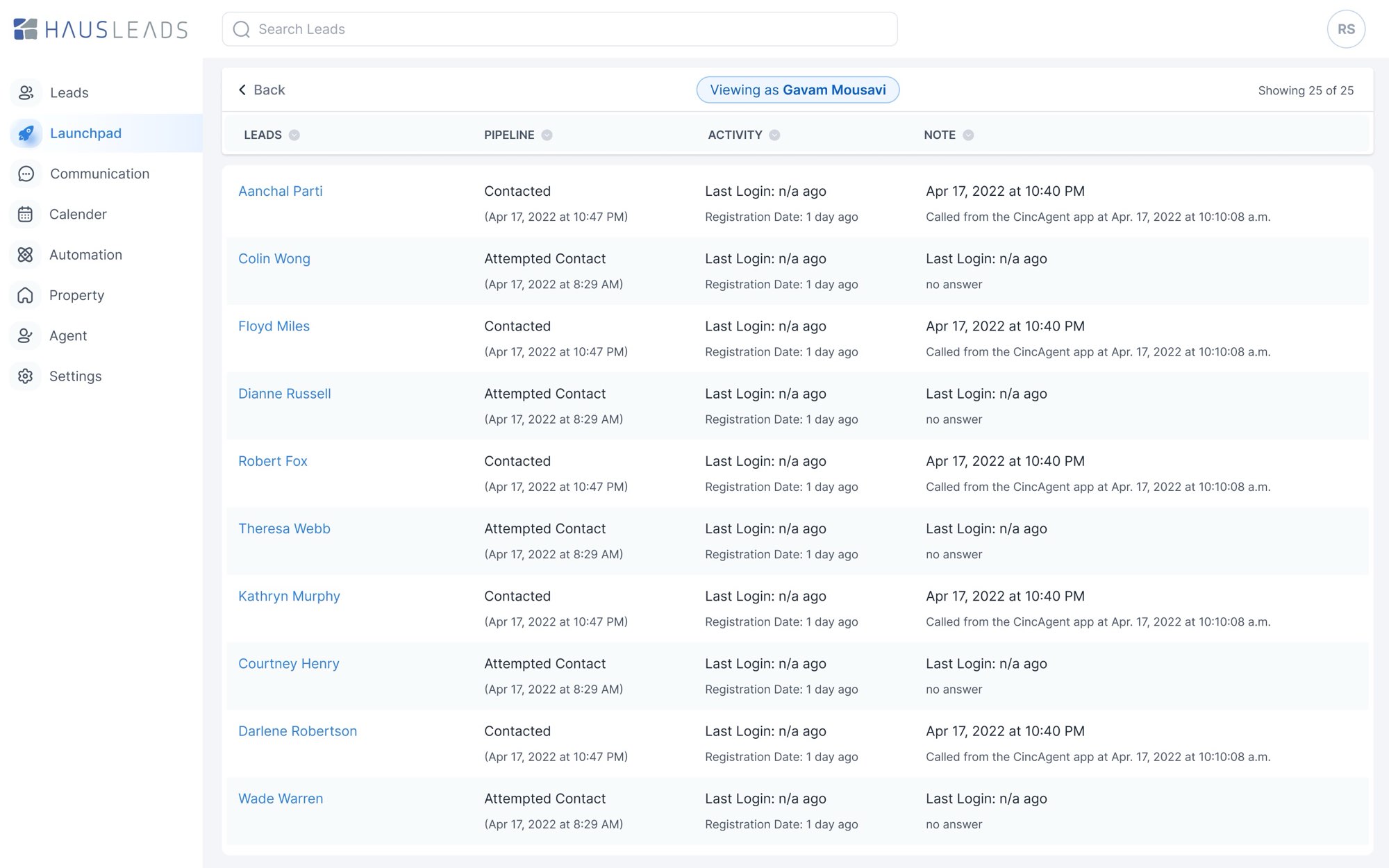
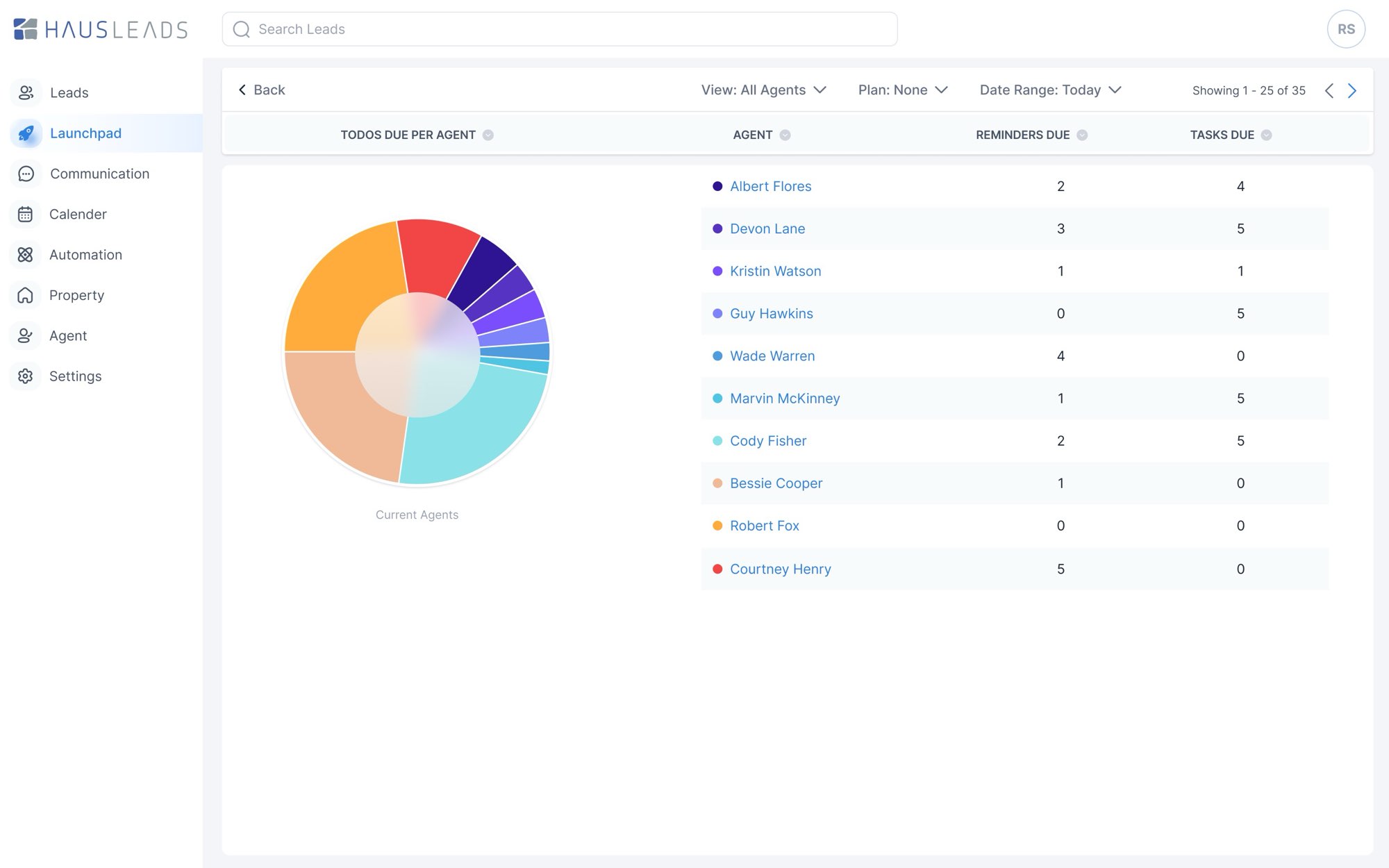
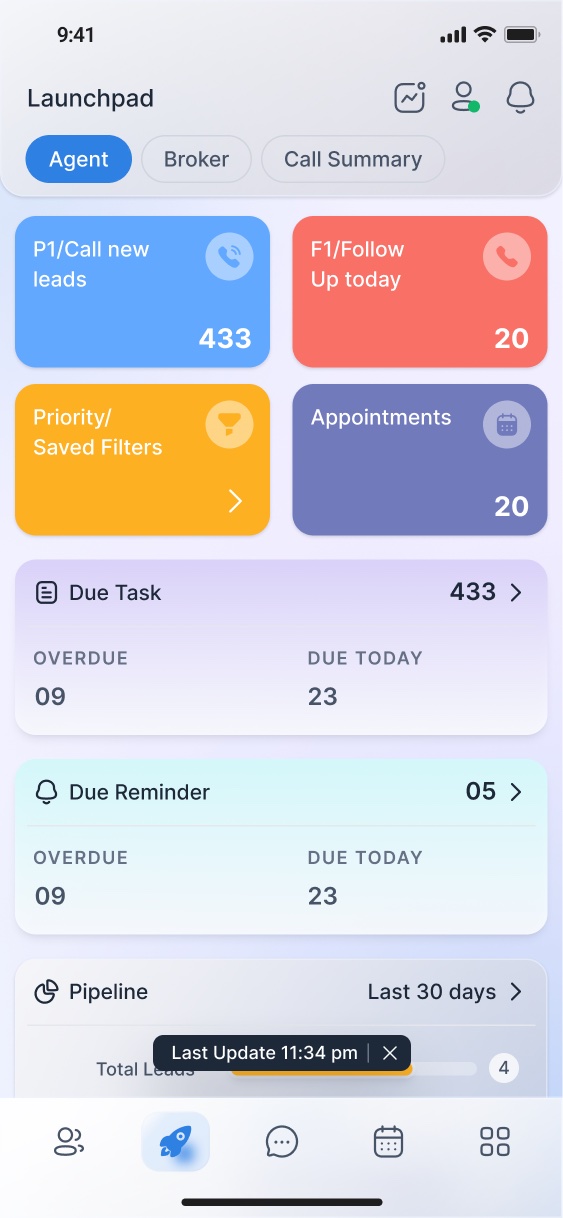
- How the numbers were shown was my call. A broker mostly wants to know which agents need help, so Launchpad leads with tasks and reminders due and a pipeline table by agent, with lead trends and top cities and sources beside it.
- Trade-off
- I stuck to bars, lines and a pie for sources, nothing fancier. Most numbers open the list of leads behind them, so a figure always leads back to people.
14 / On the phone
The same leads, between showings.
- Why
- Agents spend most of the day in cars and in other people's houses. The iOS and Android apps are for acting on leads: see who to call, open them, call.
- Trade-off
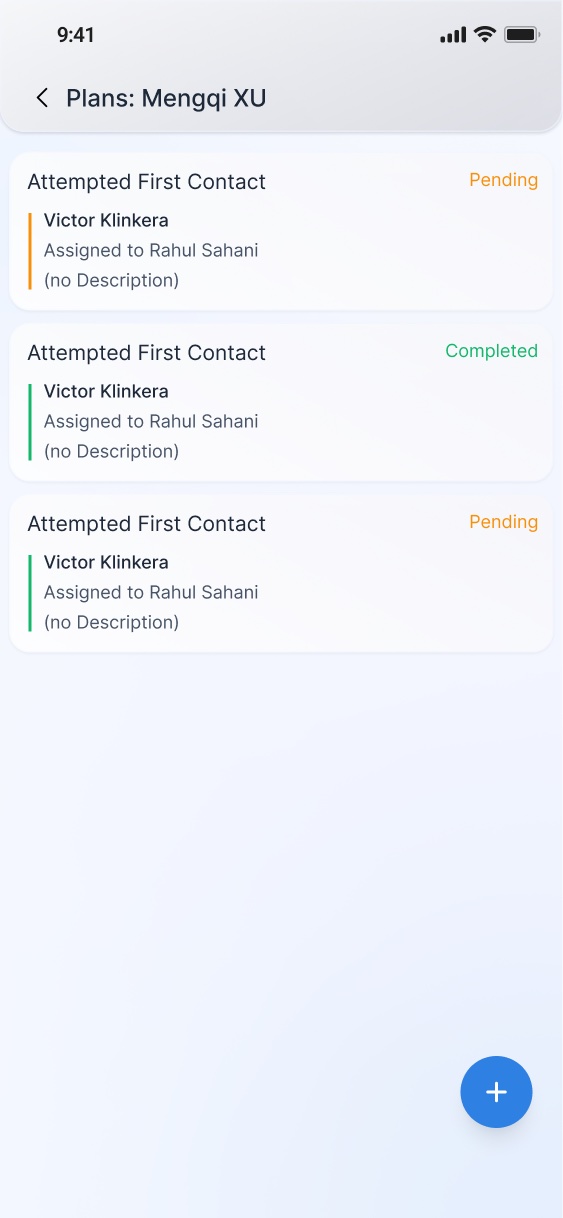
- The desktop table doesn't fit a phone, so each lead became a card that keeps the four activity counts. Everything else is one tap away in the profile.
15 / Outcome
Launched in 2023.
Stonehaus launched Hausleads in 2023. Feedback from agents in the first month was good: they found it easier than the platform they'd been using. We didn't publish usage numbers, so I'm not quoting any.
16 / Learnings
What I'd do again.
- Keep context attached. Notes and history belong to the person or home they're about. Both sides of this product got better every time we did that.
- Decide what each screen is for. Lists and dashboards are for scanning; profiles are for reading. Dense screens are fine once that's clear.
- Give every step an obvious next one. Saving, comparing, asking, following up: if one of them has no clear place, people stop there.
- Draw the map first. The two IA diagrams gave seven people one picture of the product, and saved a lot of arguing later.
Good ideas start with a conversation.
Start a conversationAway from the keyboard. I reply within a day.